

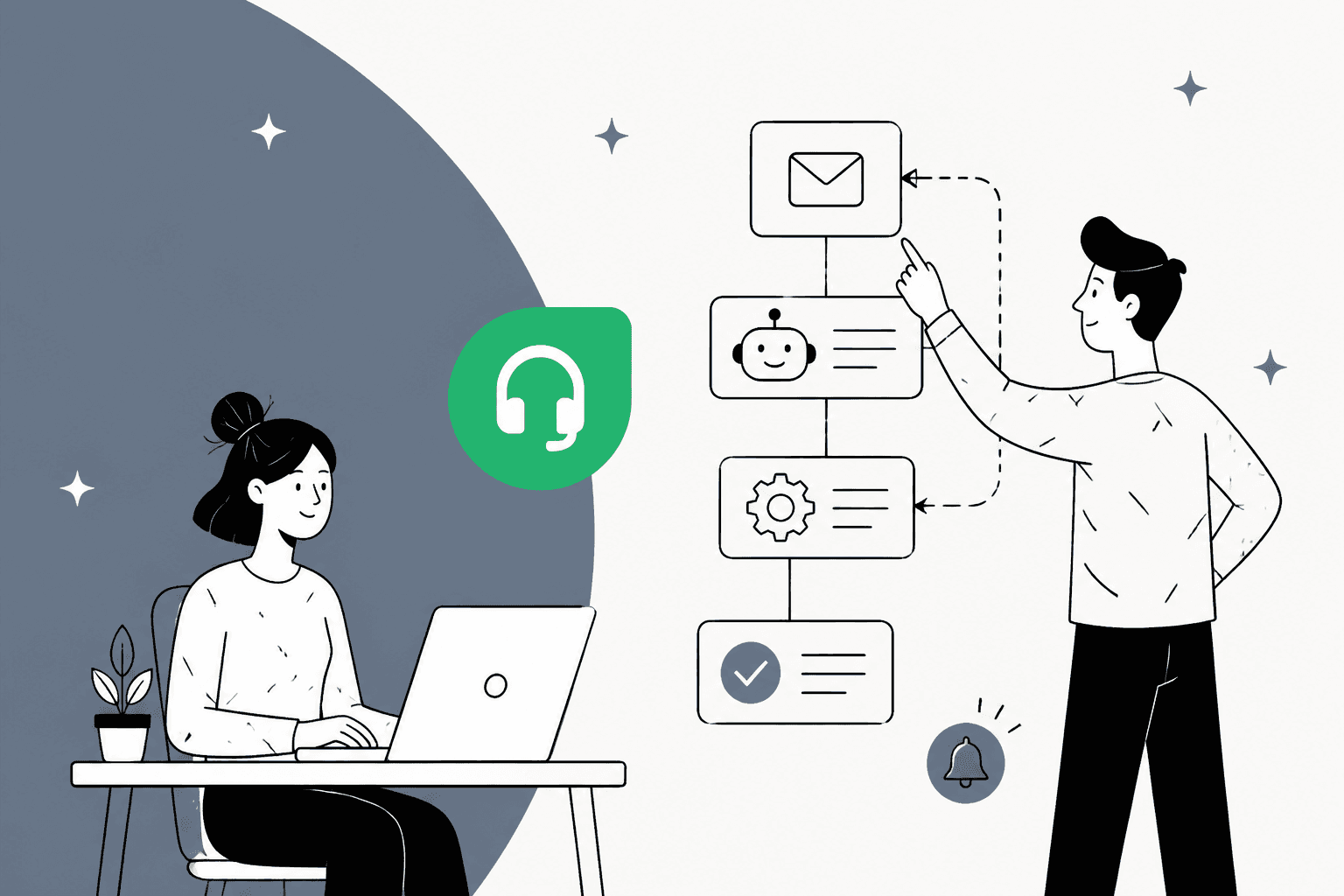
Freshdesk gives you four layers of automation, and most teams only use the first one. The classic rule engine (Ticket Creation, Ticket Updates, and Hourly Triggers, the features formerly called Dispatch'r, Observer, and Supervisor) handles routing, tagging, SLA escalations, and reminders. Scenario automations are one-click macros for repetitive agent actions. Omniroute assigns tickets by round-robin, load, or skill. And Freddy AI is the layer that actually answers tickets.
Here's the catch worth knowing up front: rules and macros move tickets around, but they don't resolve them. A routing rule can send a refund question to the billing group in milliseconds, but a human still has to write the refund reply. To automate the answer, you need an AI layer, and Freddy's session-metered pricing plus plan gating is where a lot of teams stall. We'll walk through every native lever step by step, then show where an AI agent like eesel picks up what the rules can't.
What you can actually automate in Freshdesk
Before touching a setting, it helps to see the whole toolkit. Freshdesk automation isn't one feature, it's a stack, and each layer does a different job. The cheapest layers are deterministic ("if this, then that"), and the smartest layer is the AI agent that reads a ticket and decides what to do.
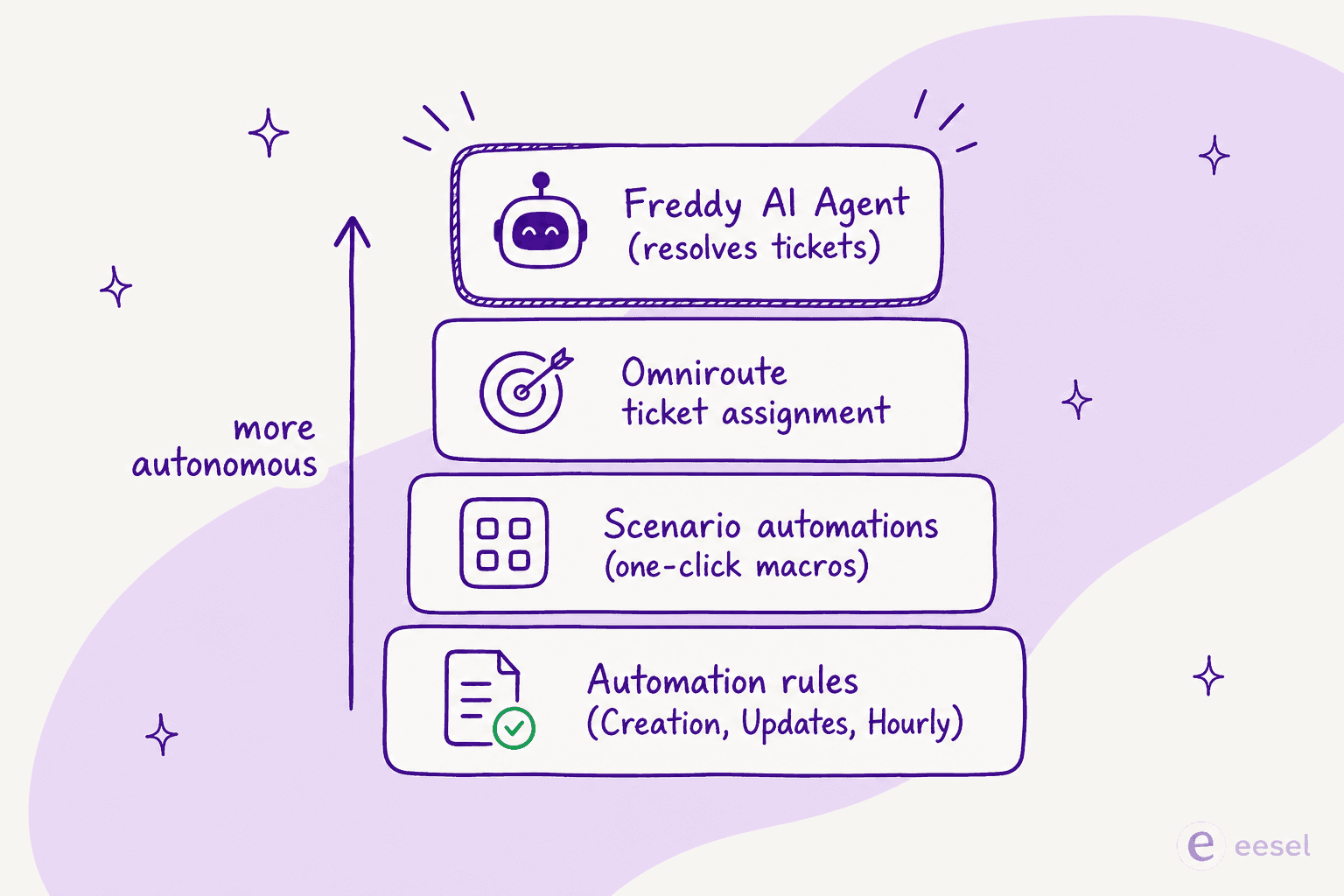
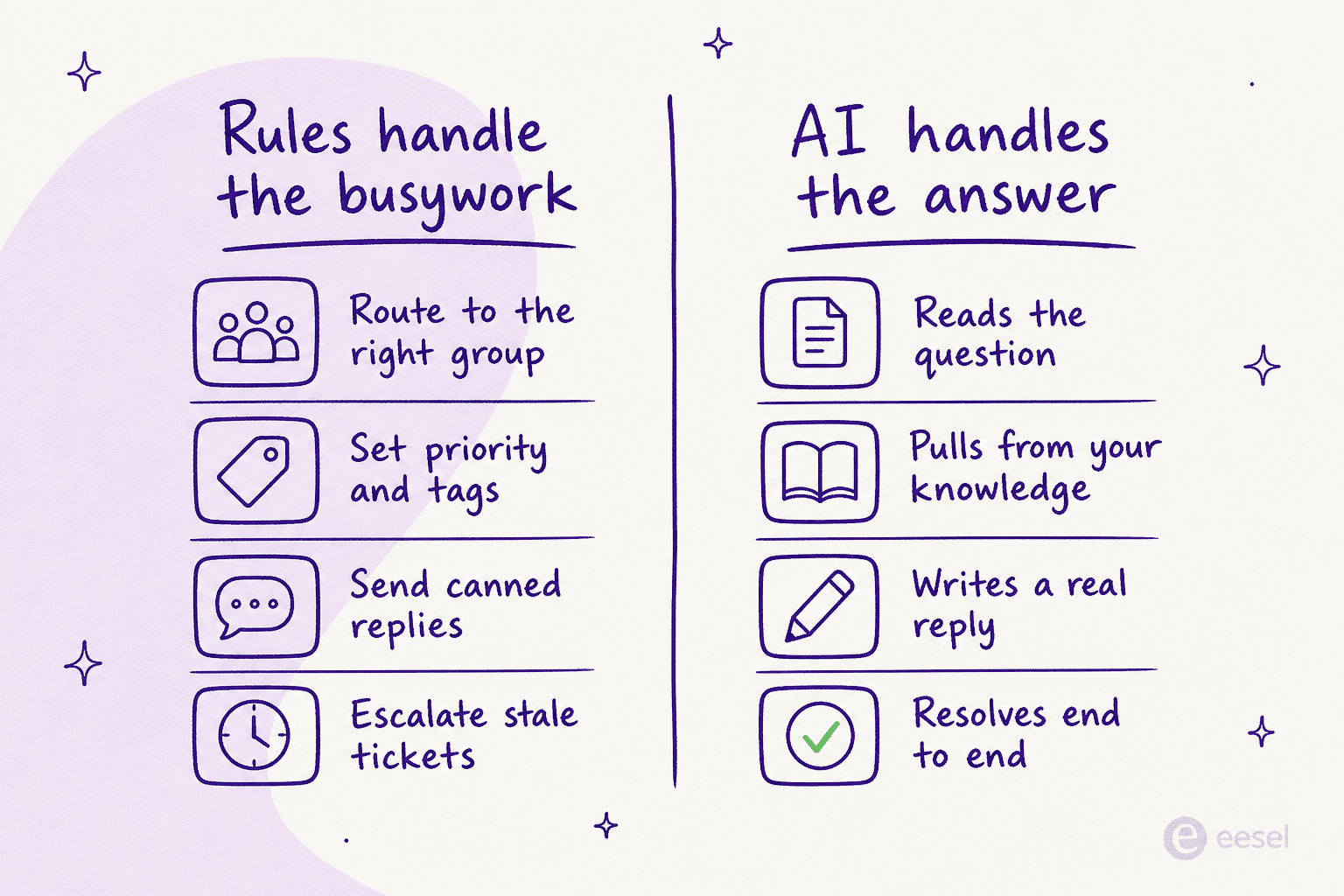
Working from the bottom up, that's automation rules, scenario macros, Omniroute assignment, and Freddy AI. The first three are about triage: getting the right ticket to the right place with the right labels. Only the top layer is about resolution. Keep that distinction in mind, because it decides how far Freshdesk's native automation can take you before you need something more.
Before you start
A few things to line up so the steps below actually stick:
- Admin access. Everything here lives under Admin in Freshdesk, and most of it needs an admin or account-admin role.
- The right plan. Ticket Creation rules work on every plan including the Free Program (two agents, six months). Ticket Updates rules, Hourly Triggers, and scenarios need Growth or above. Advanced routing (Omniroute) is Pro and Enterprise only. We mapped this against the full Freshdesk pricing tiers so you know what you're working with.
- Your groups and agents set up. Routing rules assign tickets to groups, so define those first.
- A clean knowledge base. If you plan to use Freddy or any AI layer, the quality of your help docs is the ceiling on answer quality.
One more thing: write down the two or three repetitive things eating your team's time before you build anything. "Refund requests get assigned to the wrong person" is a rule. "Agents retype the same shipping-delay reply 30 times a day" is a canned response or a Freddy job. Matching the problem to the right layer is half the work.
Step 1: set up your three automation rule types
This is the heart of Freshdesk automation. All three rule types live under Admin > Workflows > Automation Rules, each on its own tab. Per Freshdesk's overview of automation rules, there are exactly three, and the thing that separates them is when they fire.
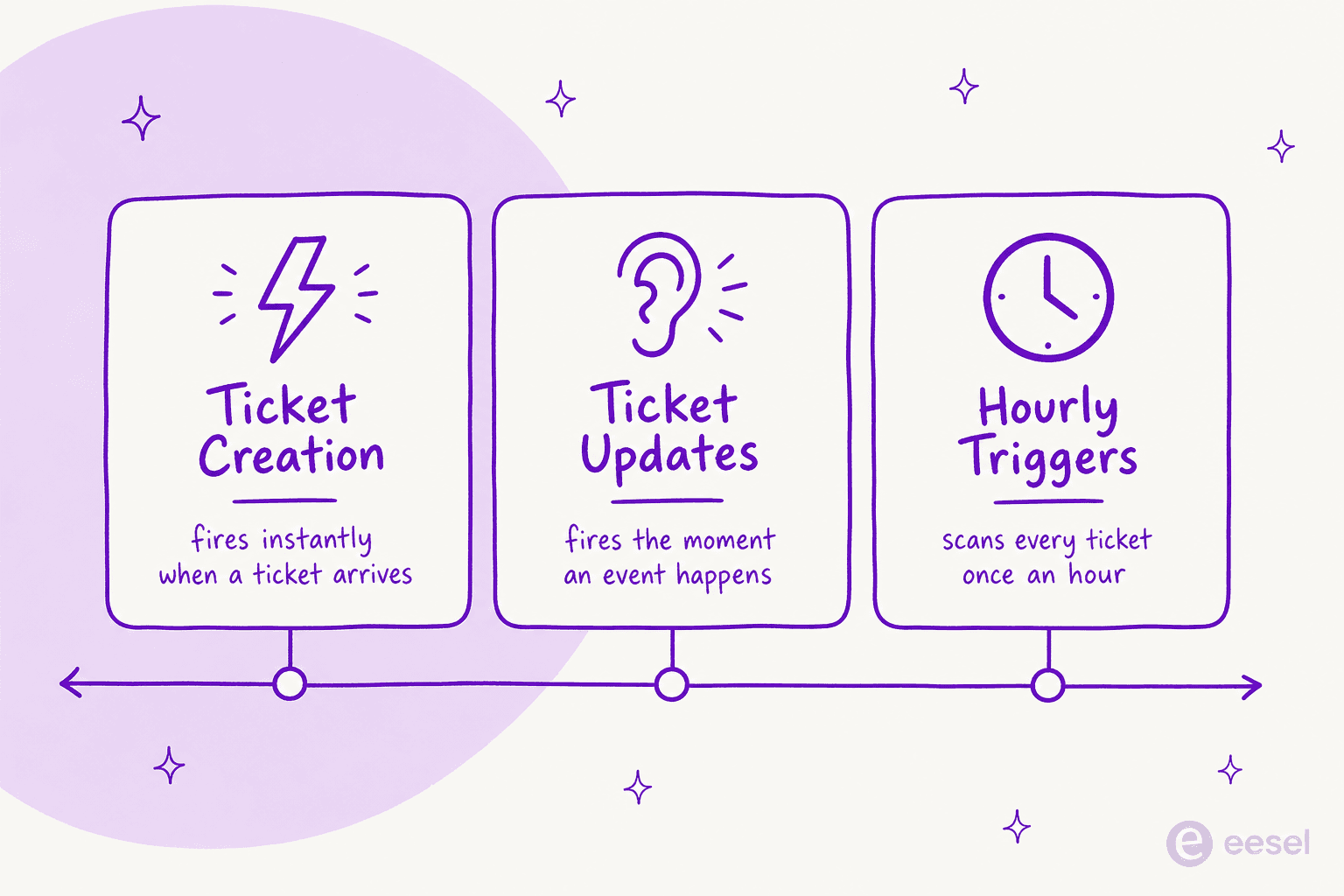
A quick note on names: Freshdesk renamed all three. If you've read older guides, Dispatch'r is now Ticket Creation, Observer is now Ticket Updates, and Supervisor is now Hourly Triggers (Freshdesk's docs literally label it "FKA Time Triggers"). The old names are gone from the admin UI, so we'll use the current ones.
Ticket Creation rules
These fire the instant a ticket is created, which makes them your triage front door. Per the ticket-creation docs, they can assign tickets to groups and agents, set status, priority, and type, trigger notifications, and delete or mark tickets as spam. Conditions can be built on ticket, contact, or company properties with nested AND/OR blocks.
To build one, go to Admin > Workflows > Automations > Ticket Creation tab > New Rule. Freshdesk even ships a sample rule that routes refund and return tickets to a billing group, which is a good template to clone rather than build from scratch.
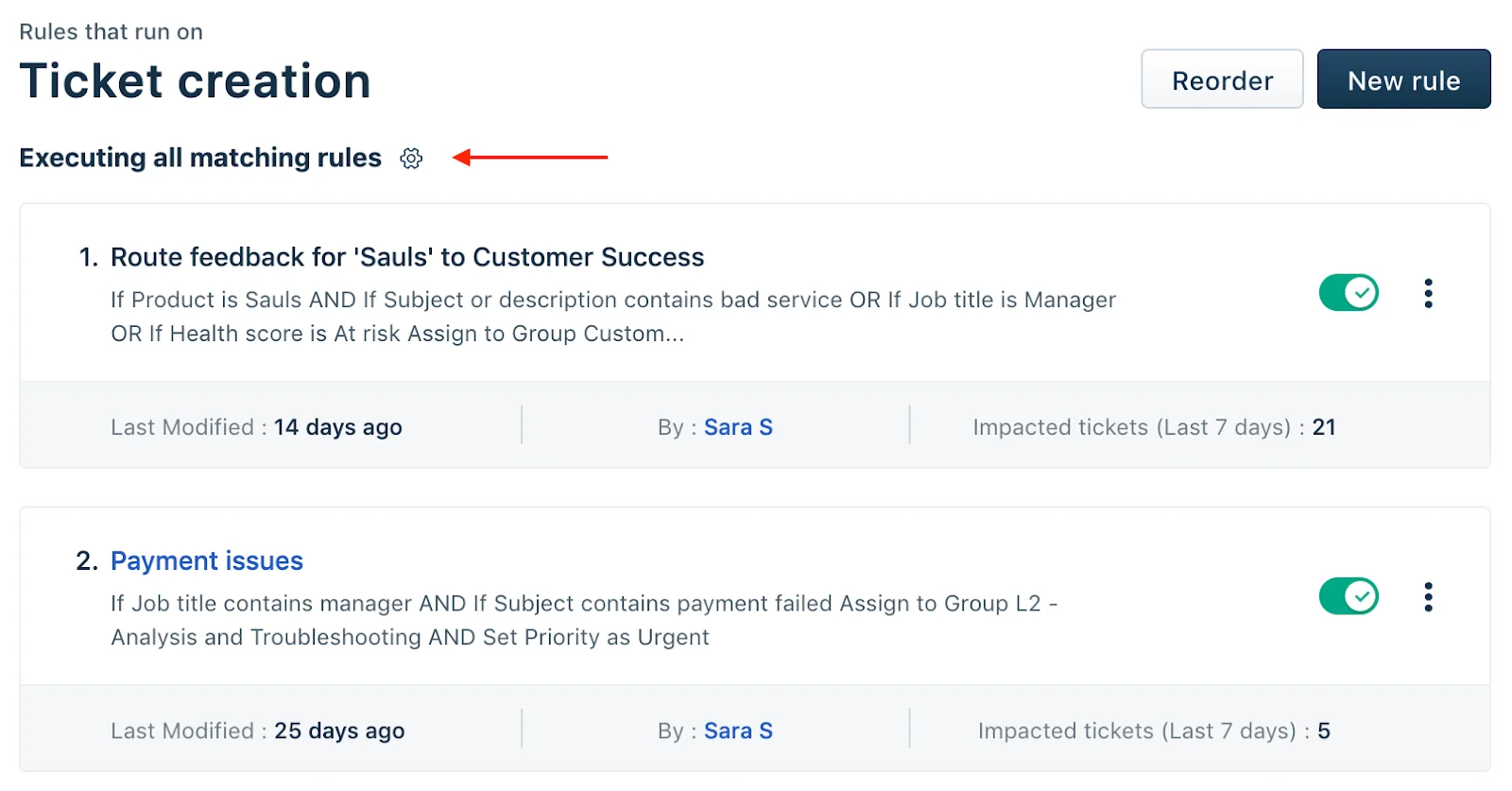
Here's the single most common gotcha, and it's worth tattooing somewhere. By default, only the first matching rule runs. Freshdesk's docs warn that "the order of the rules is very important because only the first matching rule will be executed." If a rule isn't firing, a higher one almost certainly matched first. To run them all, click the gear above the rules list and pick "execute all matching rules."
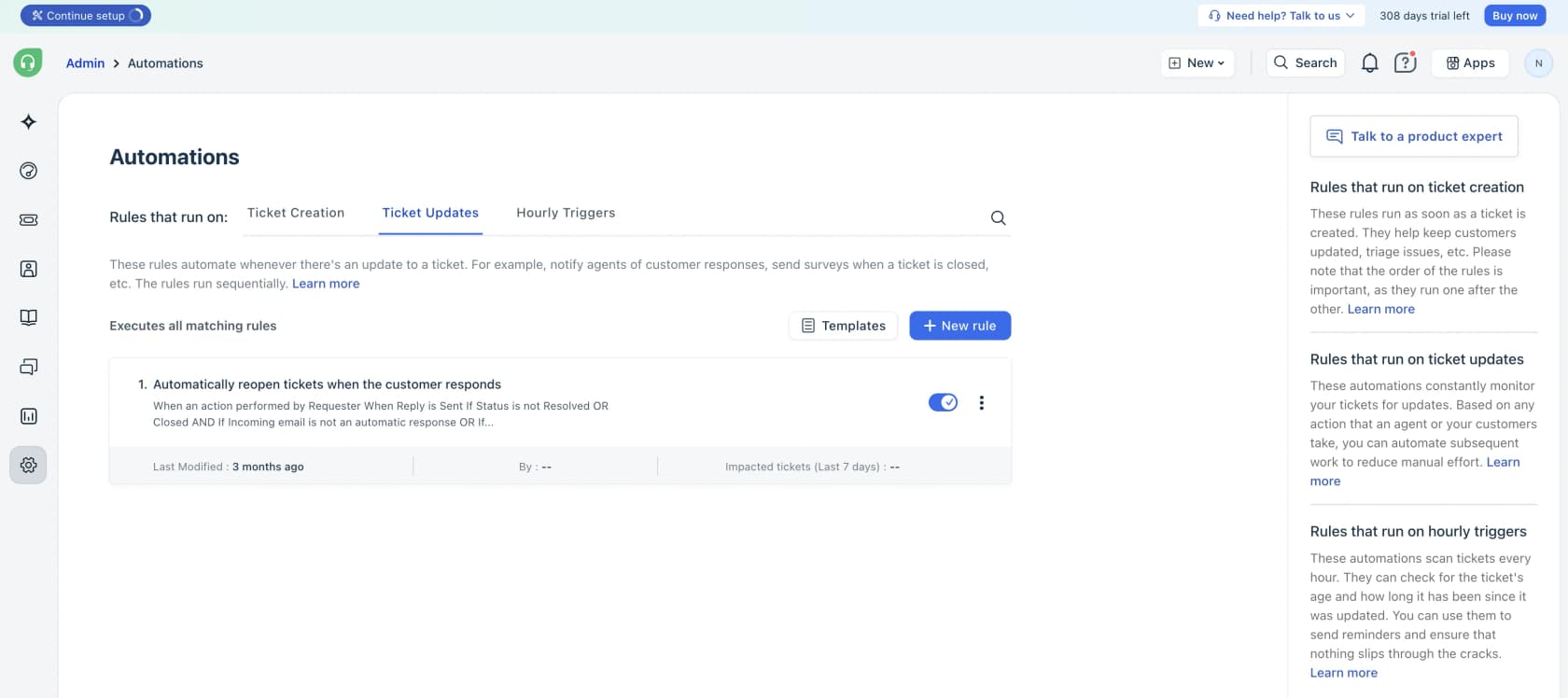
Ticket Updates rules
If Ticket Creation is the front door, Ticket Updates rules are the team that watches what happens next. They "constantly listen for events you've specified, match them against conditions, and then perform automatic actions," per the ticket-updates docs. Classic uses:
- Auto-reopen a resolved ticket when the customer replies
- Send a CSAT survey the moment a ticket is resolved
- Email a supervisor when a VIP leaves a bad rating
- Fire a webhook to an external system when a condition is met
What makes this rule type different is the Event block: you specify who performed the action (agent, requester, collaborator, or system) and which event to listen for (a property changed, a note added, a reply sent, feedback received, and so on). Unlike creation rules, all matching update rules execute top to bottom, so there's no first-match-only trap here.
Hourly Triggers
The third type, Hourly Triggers, is your cleanup crew. As the name now makes obvious, these scan every ticket once an hour and act when a ticket has been in some state for a set period, per the hourly-triggers docs. The classic use is "if a ticket has been unattended for 48 hours, bump priority to high and notify a supervisor", which ties directly into your SLA policies.
Three limits to respect, because they trip people up:
- They run once per hour, so any time threshold must be one hour or more.
- They only match tickets updated in the last 30 days.
- They run on ticket properties only, not contact or company properties, and can't use conditions on subject, description, requester email, CC, tags, or attachments.
Step 2: build scenario automations
Rules run on their own. Scenario automations are the opposite: they're one-click macros an agent triggers by hand. Instead of repeating "tag as Refund, assign to the Refunds group, set status to Processing Refund" by hand on every ticket, you bundle those steps into a macro and run them in a single click, per the scenario-automations docs.
Set one up under Admin > Agent Productivity > Scenario Automations > New Scenario, then add ordered actions and choose who can see it (just you, your group, or all agents).
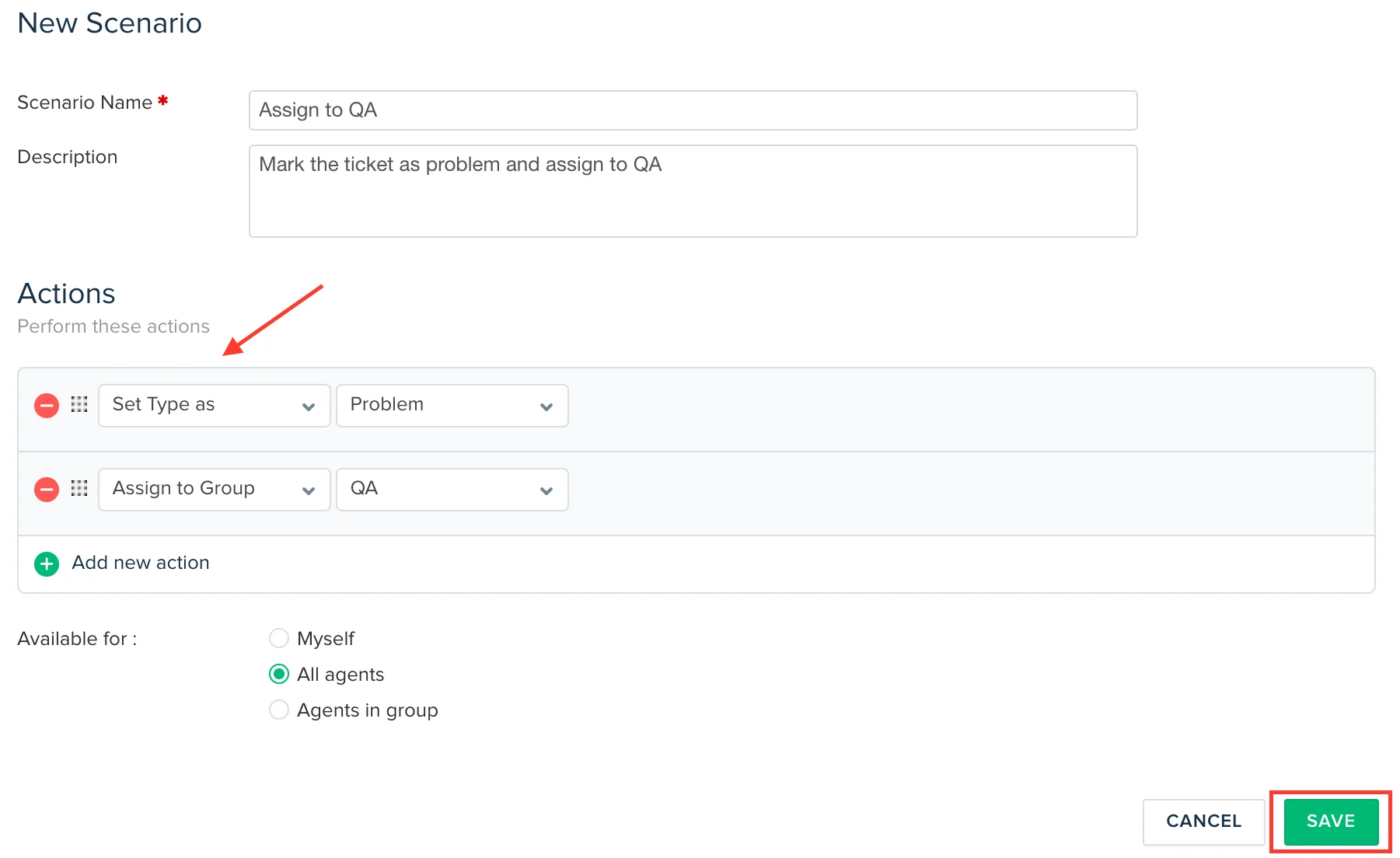
The available actions cover most of the busywork: set priority, type, and status, add notes and tags, assign to an agent or group, send email, and prefill a reply. One detail to flag: the "Set Reply" action prefills a canned reply for the agent to review, it does not auto-send. That's the recurring theme of native Freshdesk automation. It teed up the work, but a human still has to send. You can run a scenario on a single ticket from More actions > Execute scenarios, or bulk-execute it across many selected tickets at once.
Step 3: turn on automatic ticket assignment
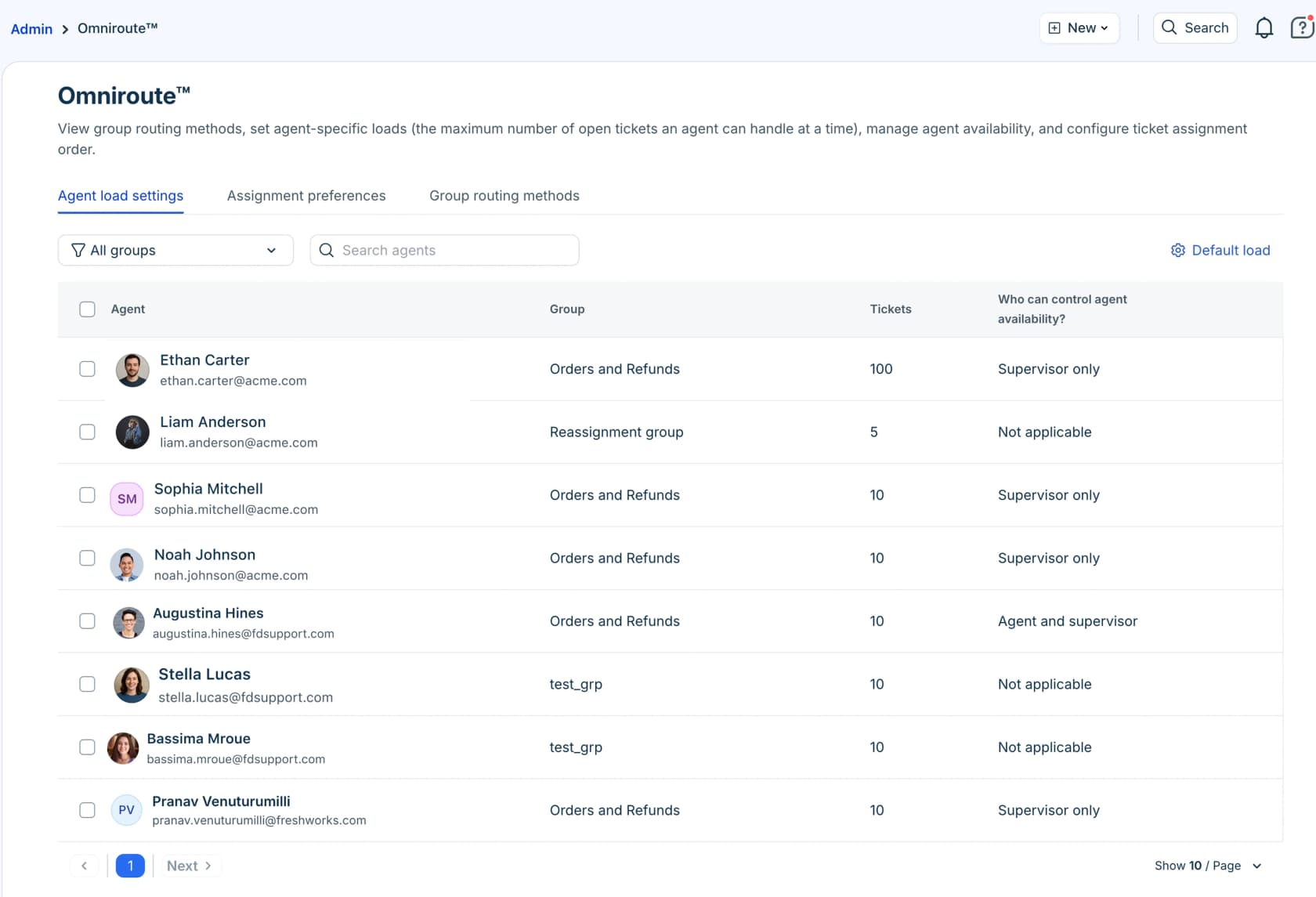
Manually deciding who gets each ticket doesn't scale. Freshdesk's automatic ticket assignment is powered by Omniroute, which assigns based on agent load, availability, and preferences, per the Omniroute settings docs. Heads up before you go looking for it: Advanced Automatic Routing is Pro and Enterprise only.
There are three routing methods, per the automatic ticket assignment docs:
| Method | How tickets get assigned | Best for |
|---|---|---|
| Round-robin | Circular order across available agents, factoring capacity | Small teams, transactional queries |
| Load-based | By how many tickets each agent can handle at once | Higher-volume teams wanting faster resolutions |
| Skill-based | To agents whose skills match (language, product) and who have capacity | Multilingual or specialist support |
To switch it on, edit a group under Admin > Groups, enable Advanced Automatic Routing on the Group Properties tab, then configure capacity under Admin > Omniroute. All three methods require the agent to be online before a ticket lands with them. If you want tickets assigned by skill rules specifically, we have a step-by-step skill-routing workflow that goes deeper.
Step 4: let Freddy AI handle the repetitive questions
Everything so far routes, tags, and reminds. None of it answers a customer. That job belongs to Freddy AI, Freshworks' AI suite, built in a no-code AI Agent Studio. Freshworks says Freddy AI Agent can resolve "up to 80% of queries across channels" and deploy to web chat, WhatsApp, Facebook, Instagram, and email via the Email AI Agent.
You build an agent with natural-language prompts and a drag-and-drop interface, training it on your knowledge base, and Freshworks ships Vertical AI Agents pre-loaded with 50+ agentic workflows and integrations like Shopify and Stripe. Deployment is fast:
"The best part of the Freddy AI Agent is how quickly it can be deployed. If you have your FAQs and data ready, you can just give those to it and have a new AI agent ready within minutes."
Amanda Pope, Customer Success Product Manager, in Freshworks' Freddy AI Agent materials
The cost model is where you have to do some math. Freddy AI Agent includes 500 sessions one time on Growth, Pro, and Enterprise, then runs $49 per 100 sessions after that, per the Freshdesk pricing page. A session is a unique end-user interaction, and for the Email AI Agent it's a 72-hour window. At real volume, that meter adds up, which is why so many teams compare it against Freddy AI pricing alternatives before committing. If you're weighing whether it's worth it, our honest Freddy AI review lays out the trade-offs.
Where Freshdesk automation hits a wall
Put the four steps together and you have a well-oiled triage machine. But there are two walls teams keep running into, and it's better to know them before you've built 40 rules.
The rules don't answer, they sort. This is the big one. Every native layer except Freddy moves tickets and prefills text. The actual reply still comes from a person, or from Freddy's metered sessions.
The good automation is gated and metered. The features that move the needle, advanced routing and Freddy, sit on Pro/Enterprise and a per-session meter. We've heard from teams comparing options that getting custom automation rules to coexist with each other gets fiddly fast, and that Freshdesk support tends to steer you toward buying more Freddy when you ask.
And the trust question matters more than the price. The teams who get the most out of AI support are the ones who refuse to let it answer everything blindly. As one DTC supplements CX lead we interviewed put it, "the AI will never be able to answer 100% of the questions. I need an AI who is only handling the tickets that it's confident to handle and all the other ones, leave them alone." That's the bar: confidence-based control, not a bot that guesses. It's exactly the gap that a dedicated AI layer is built to fill, and it's worth reading our take on AI ticket classification and how AI agents compare to human agents on cost before you decide where to draw the line.
Try eesel
If Step 4 is where Freshdesk automation got expensive or fiddly, eesel is the layer built to solve it. eesel is an AI helpdesk agent that plugs straight into your existing Freshdesk, trains on your past tickets and help docs in minutes, and resolves the repetitive questions autonomously, while leaving anything it isn't confident about for a human. No rip-and-replace, no per-seat fee, and you set the spend cap.
The differentiator is control: you can pick exactly which ticket types it handles and have it leave the rest alone, which is the confidence-based approach the best support teams insist on. Teams see results fast.
"In the first month, eesel is resolving 73% of our tier 1 requests. The platform even includes automations for ticket tagging, assignment, and status updates."
Kim Simpson, Gridwise, on G2

If you've got the routing rules dialed in but the answers are still landing on a human, that's the piece eesel automates. You can connect an AI agent to Freshdesk and see it work on your own tickets, the same way you'd automate Zendesk tickets or any other helpdesk in the stack. For the wider field, our roundup of the best AI automation apps for Freshdesk and the best customer service AI is a good place to compare.