

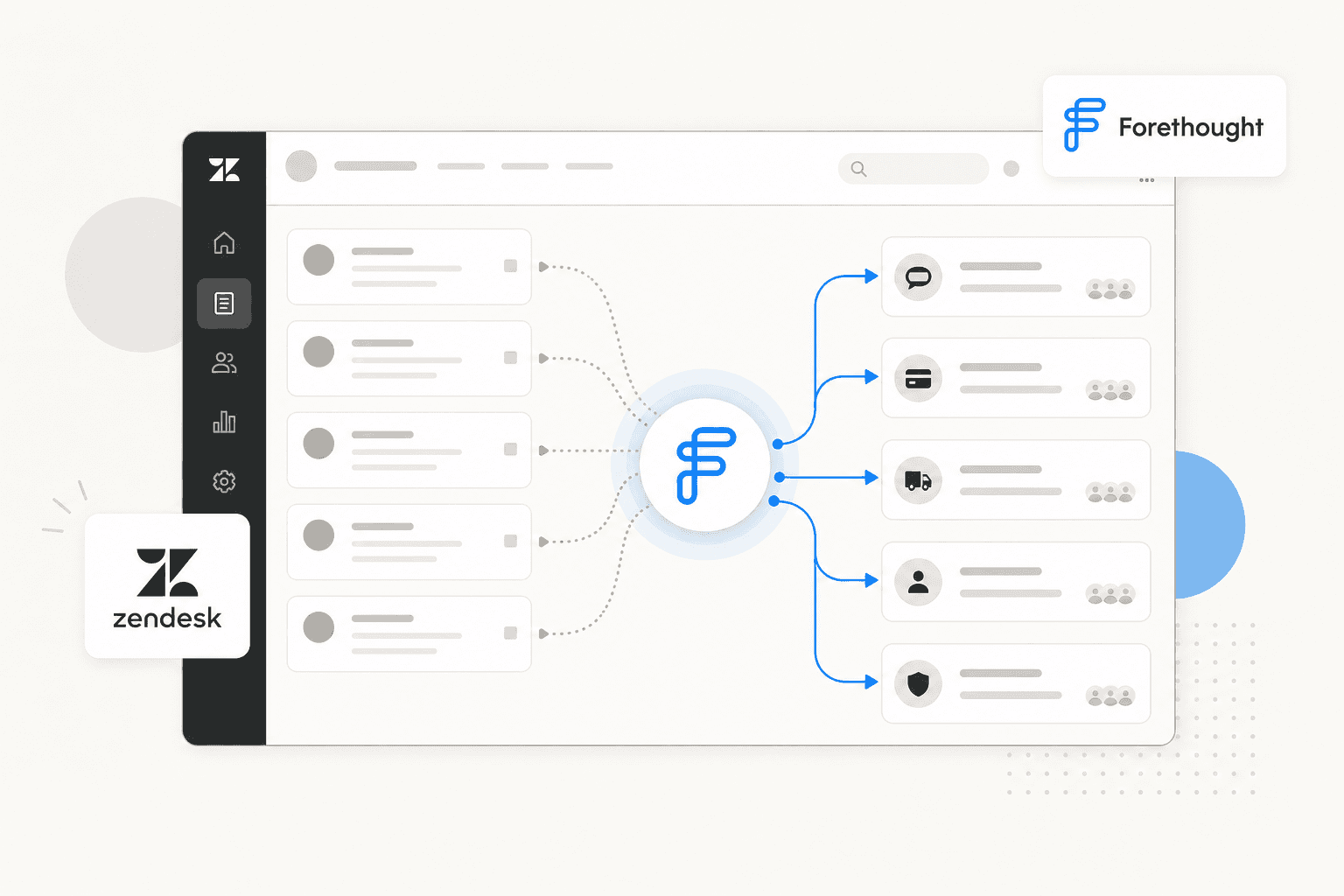
Forethought's AI triage system is one of the more capable ticket classification tools built specifically for enterprise Zendesk environments. It reads incoming tickets, classifies them by issue type and priority, and routes them to the right team or agent automatically. Since Zendesk acquired Forethought in March 2026, the two products have been moving toward a unified stack, and the configuration process now sits at an interesting point: the system is powerful, but setting it up well requires deliberate choices about taxonomy, routing logic, and model type.
This guide covers the full configuration process, from connecting your Zendesk instance to validating triage accuracy before you go live. If you want something that gets AI triage running in Zendesk in under 15 minutes without model training or taxonomy definitions, eesel AI is an alternative worth looking at first. But if you're working with Forethought or evaluating it for your Zendesk environment, here's how to configure it correctly.
What Forethought triage actually does
Triage is Forethought's classification and routing engine. It's not the same as the Solve agent, which handles customer-facing responses. Triage sits upstream: it reads an incoming ticket, assigns one or more issue categories, scores its confidence in that classification, and routes the ticket to the appropriate queue or agent.
After triage runs, the Solve agent reads the routed ticket, queries your Zendesk knowledge base, and either resolves the issue autonomously or escalates it. This means triage quality has a compounding effect. A correctly classified ticket lands in the right queue, where Solve has the right context to resolve it. A misclassified ticket degrades every metric downstream: first response time, resolution rate, and agent satisfaction.
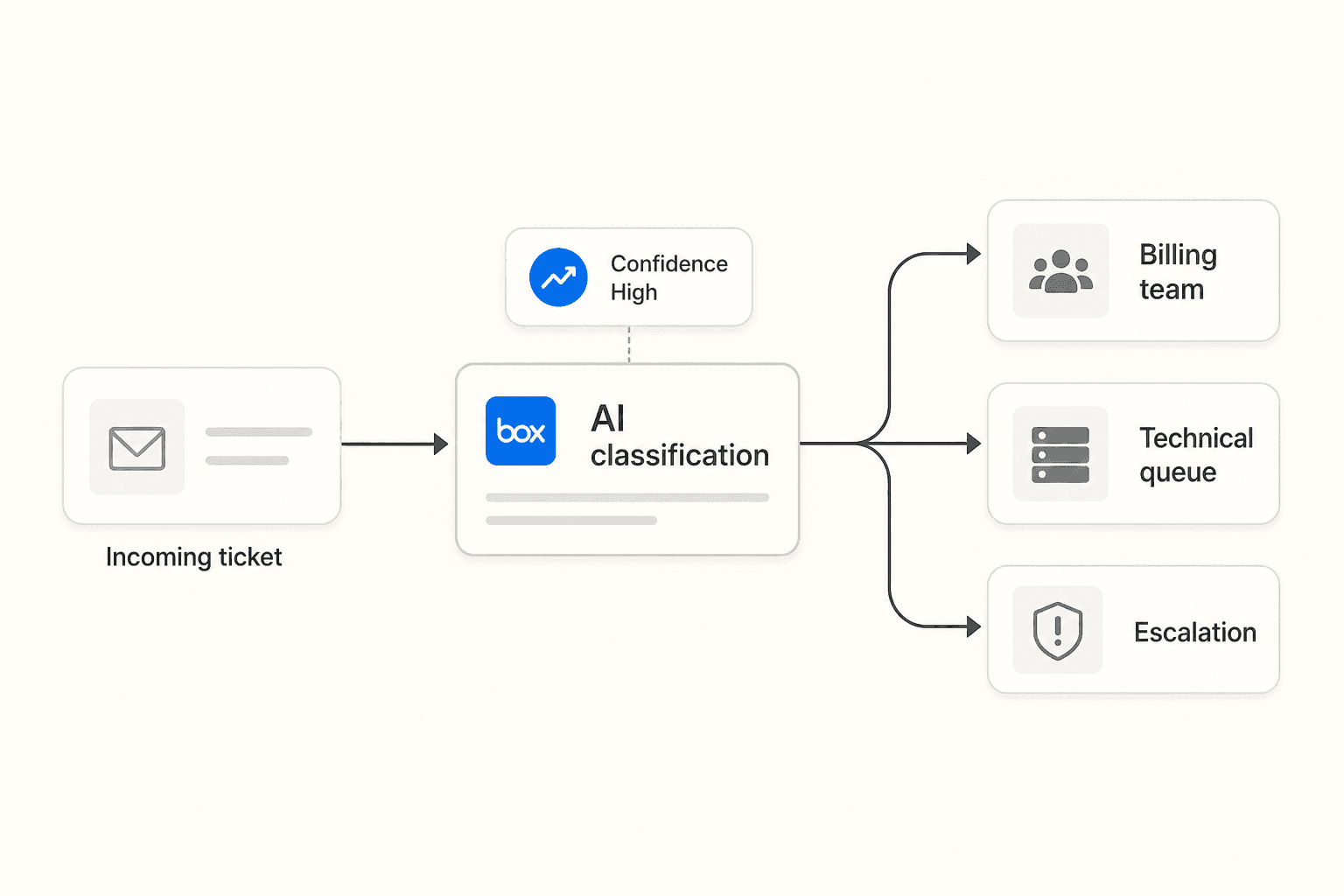
Triage supports multi-label classification, meaning a single ticket can carry multiple categories. A ticket about a billing error on a technical feature gets both #billing and #technical. Routing rules can account for combined labels. Understanding this before you define your taxonomy saves re-work later.
For teams learning how AI handles ticket classification more broadly, our guide on how to automate ticket triage covers the concepts across different platforms.
Prerequisites
Before starting configuration, you'll need:
- A Forethought account (Basic for ready-to-use models; Professional or Enterprise for custom model training)
- Zendesk admin access to create a service account and generate an API token
- At least 100 historical tickets if you plan to train a custom model (more is better - 6 to 12 months of data is typical)
- A working draft of your issue taxonomy - the categories you want Forethought to classify tickets into
The ticket history requirement is easy to underestimate. Custom triage models learn directly from your historical data, so the quality and volume of that data shapes what the model learns. Categories with fewer than 50 historical examples will produce weak classification. If you're early-stage with low ticket volume, start with ready-to-use models and revisit custom training after you've accumulated enough data.
Step 1: Connect Forethought to Zendesk
The integration uses Zendesk's API token authentication. Work through both systems in sequence.
In Zendesk:
- Go to Admin Center, then Apps and Integrations, then Zendesk API
- Enable token access if it isn't already active
- Click "Add API token" and give it a descriptive label (something like "Forethought integration")
- Copy the generated token - you cannot retrieve it again after closing the dialog
In Forethought:
- Go to Settings, then Integrations
- Select Zendesk from the integration list
- Enter your Zendesk subdomain (the part before
.zendesk.com) - Paste the API token
- Click "Test connection" to verify credentials are accepted
When the test passes, Forethought prompts you to confirm permissions. For ticket triage, the required scope is: tickets (read and write), users (read), knowledge base (read), and custom fields (read and write if you plan to use Forethought to populate custom field values on tickets).
One architectural constraint to note: Forethought currently supports one Zendesk instance per workspace. Multi-brand setups that span multiple Zendesk instances need separate Forethought workspaces. This is a known limitation from before the acquisition, and the integration roadmap includes resolving it as Forethought embeds more deeply into Zendesk's platform.
Step 2: Choose your triage model type
The model type you configure determines how quickly you can go live and how accurate classification will be for your specific ticket mix.
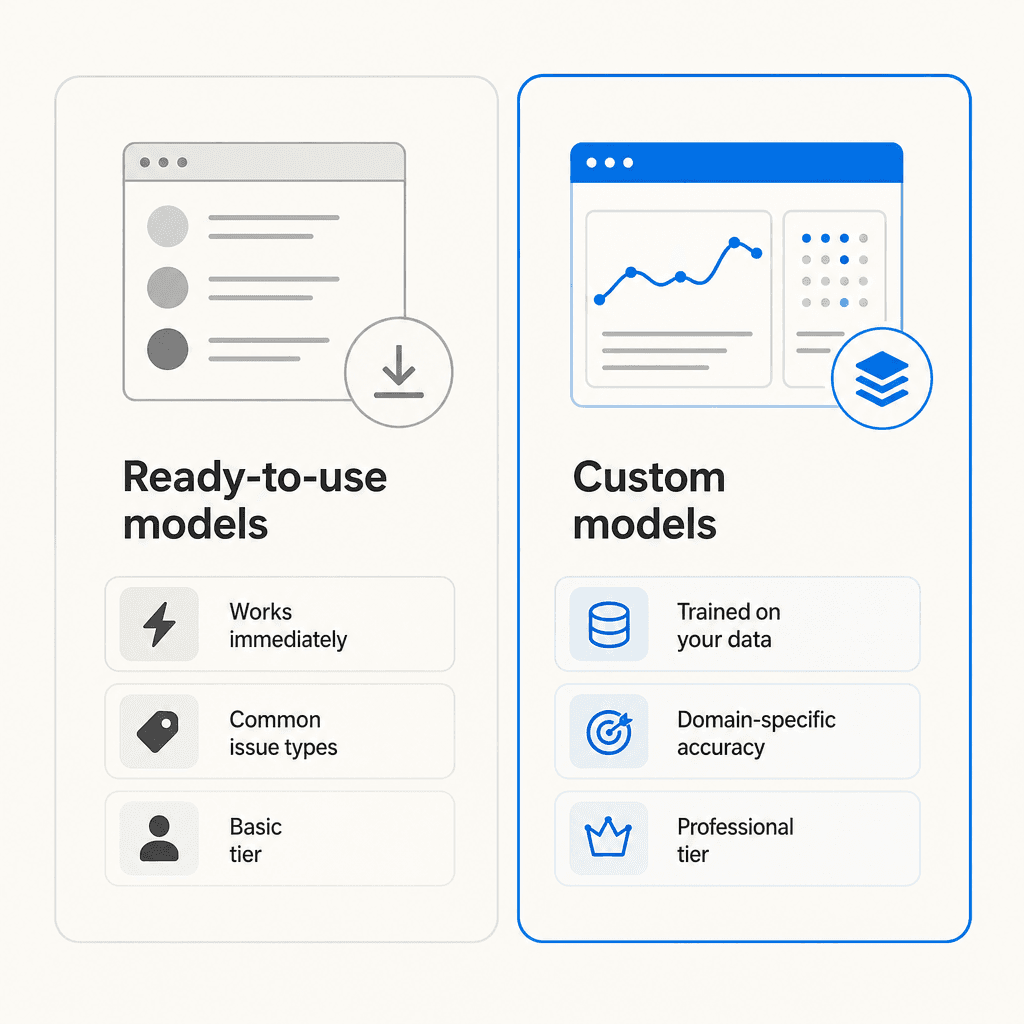
Ready-to-use models are pre-built classifiers included in the Basic plan and above. They recognize common issue types across most B2B and B2C support operations: billing, technical problems, account management, general questions. No training required - you enable them, define your routing rules, and they're ready. For teams with generalist support operations, they cover the majority of ticket types.
Custom triage models train on your actual ticket history, available on Professional and Enterprise plans. You export historical tickets, define your category labels, and Forethought trains a model that learns your specific issue taxonomy. If your operation has domain-specific terminology - healthcare billing codes, SaaS product-specific error types, financial compliance categories - custom models are meaningfully more accurate.
The practical tradeoff: ready-to-use models take 30 minutes to configure. Custom models take 1 to 2 days to configure and validate. If you're testing the integration or running low ticket volume, start with ready-to-use and plan for a custom model after 3 months of accumulated data.
Step 3: Define your ticket taxonomy
Taxonomy is where most teams under-invest, and it's where triage accuracy is determined long before the model runs.
Your taxonomy is the set of categories Forethought will use to classify tickets. Three principles make a taxonomy effective:
Specific enough to be actionable. "Technical issue" is too broad if your technical team has separate queues for API errors, login issues, and performance problems. Each category should map to a distinct routing destination.
Broad enough to cover the long tail. If 80% of your tickets fall into 4 categories, don't define 25. Each category needs sufficient training examples to build a reliable classifier. Over-categorization spreads your data thin.
Aligned to your routing destinations. A category with no corresponding routing action is noise. Every category you define should map to a specific team, queue, or agent group in Zendesk.
A reasonable starting taxonomy for a mid-market SaaS support team:
| Category | Routes to |
|---|---|
| Billing and invoices | Finance + support |
| Account access | Security team |
| Technical errors | Engineering tier 2 |
| Feature questions | Standard support queue |
| Cancellation requests | Retention team |
| General inquiries | Standard support queue |
Start with 5 to 8 categories. See our guide on building an AI triage workflow in Zendesk for more on how to think through category structure before training.
Step 4: Set routing rules
With taxonomy in place, you configure what Forethought does when it assigns a category. Routing rules map classification outputs to Zendesk actions: assigning a ticket to a group, applying tags, setting priority, or creating follow-up tasks.
Common configurations:
- Billing tickets tagged
#billingand assigned to the Finance group with normal priority - Technical errors tagged
#technicaland assigned to Engineering with high priority - Cancellation requests tagged
#churn-riskand routed to the Retention team - Multi-label tickets (billing + technical) assigned to a combined triage review queue
- Classifications below your confidence threshold left unassigned and flagged for human review
The confidence threshold matters more than it looks. If Forethought assigns a category with 55% confidence, acting on that classification introduces noise into your queues. A common starting point is routing classifications above 80% confidence automatically, and flagging anything below for manual review. You can adjust the threshold based on what you see in practice after the first few weeks.
Forethought also lets you define A/B tests for routing rules before rolling them out fully. If you're unsure whether a new routing rule will improve or hurt downstream metrics, test it on a subset of tickets first.
Step 5: Configure QA rubrics
QA rubrics are the feedback layer. They define what correct triage looks like in your operation, so Forethought can measure itself against your standards rather than generic benchmarks.
A rubric is a yes/no question evaluated against each triage decision. Examples:
- "Was the ticket assigned to the correct team?"
- "Was the issue category labeled accurately given the ticket content?"
- "Was the priority level appropriate?"
- "Was a churn-risk tag applied when the customer mentioned canceling?"
- "Was the ticket routed within the correct SLA window for its priority?"
The number of rubrics available depends on your plan: 5 on Basic, 20 on Professional, and unlimited on Enterprise. If you're starting with Basic, prioritize the 3 to 5 questions that most directly measure routing accuracy for your highest-volume categories.
Rubrics become more useful over time. Forethought tracks rubric scores as your ticket mix changes, so a drop in a specific rubric signals that a category is underperforming. If the billing rubric score falls from 94% to 78% after you launch a new pricing structure, that's the model telling you it needs retraining on the updated billing ticket patterns.
Step 6: Validate before going live
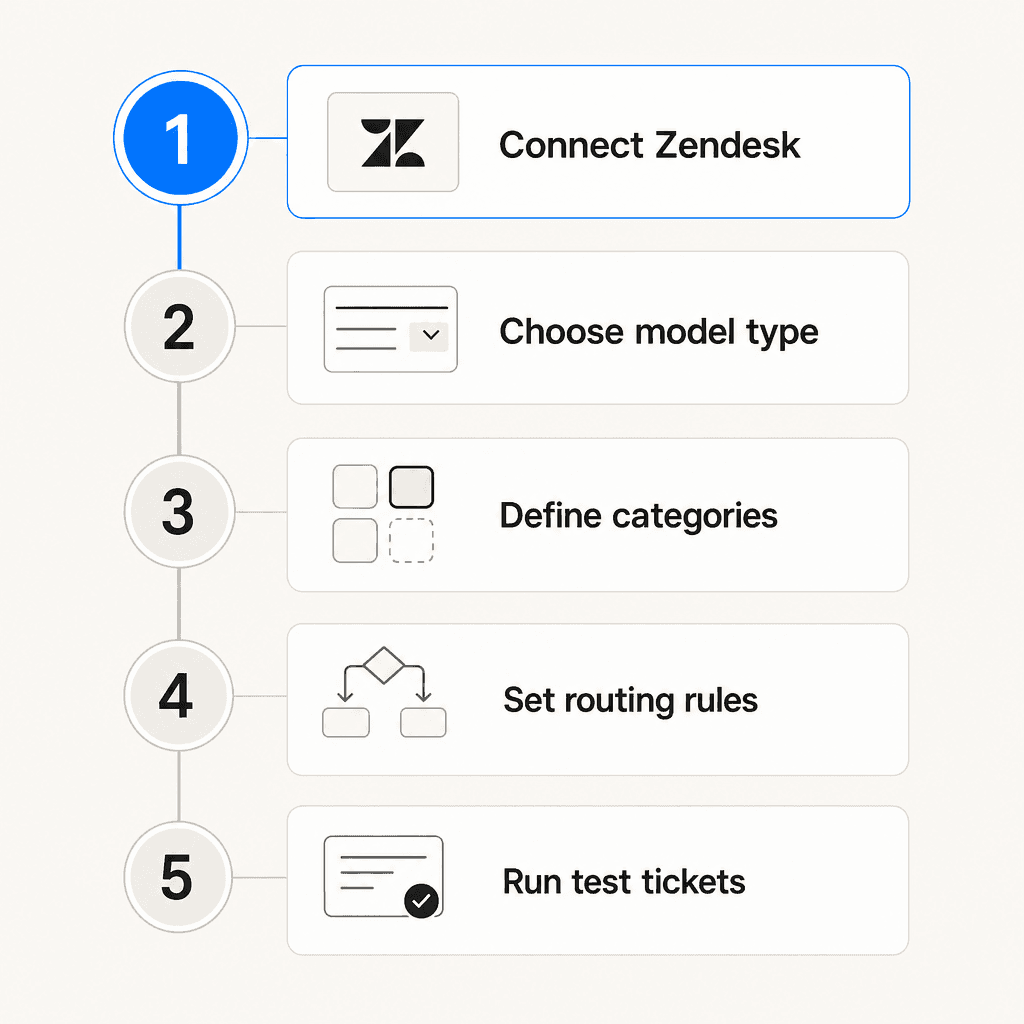
Forethought released its Test Suite in April 2026. It lets you run your triage configuration against simulated customer conversations before touching production tickets. You define test cases, specify the expected triage outcome for each, and run the suite to see whether your configuration classifies and routes them correctly.
Before going live, test at least:
- Your highest-volume ticket types (common categories should classify correctly at high confidence)
- Edge cases that span multiple categories
- Tickets that should trigger escalation rules
- Tickets in languages other than your primary language, if you serve international customers
Target at least 90% accuracy on your test suite before enabling triage on live traffic. If specific categories are underperforming, either expand their training data or simplify the category definition. A category that's hard to classify reliably is often a category that's too broad.
Common mistakes to avoid
Defining too many categories upfront. Teams often map out 15 to 20 categories to cover every possible ticket type. With limited historical data per category, the model trains weakly across all of them. Start with 6 to 8, prove the system works, then expand.
Skipping QA rubrics. Rubrics aren't optional - they're how you find out if triage is working before customers experience the effects of a misrouted ticket. Without them, problems surface through escalations and CSAT scores rather than the rubric dashboard.
Using a service account with admin-level permissions. Forethought only needs tickets (read/write), users (read), and knowledge base (read). Granting full admin access creates unnecessary security exposure.
Going live without running the test suite. A few hours validating against historical tickets before launch prevents a week of cleanup afterward. The Test Suite exists specifically to catch configuration errors before they reach real customers.
Treating the confidence threshold as a fixed setting. The right threshold depends on your ticket mix. Revisit it after 2 to 4 weeks of live data. Some operations find 75% works well; others need 85% to maintain routing quality.
What's changing post-acquisition
Forethought's acquisition by Zendesk changes the product direction in ways worth understanding if you're configuring it today.
The product remains fully operational for existing customers. Co-founder Deon Nicholas described the acquisition as the beginning of a new chapter, and Forethought's homepage now reads "A new chapter begins: Forethought is now part of Zendesk." No migration timeline has been announced.
Zendesk's stated roadmap includes embedding Forethought agents natively into the Resolution Platform, with shared analytics via Zendesk Explore, unified routing between Forethought and human agents, and voice support through Forethought's Web Calling feature (released December 2025). The Q2 2026 milestone is a beta integration with the Resolution Platform.
For teams evaluating Forethought today: the main uncertainty is whether the product stays available as a standalone purchase or moves toward a Zendesk bundle. That's worth clarifying with Forethought's sales team if you're not already a Zendesk Suite customer. Our guide to Zendesk intelligent triage covers how native Zendesk AI and Forethought's capabilities compare as the integration deepens.
eesel AI for Zendesk triage
If Forethought's configuration depth is more than you need - or if the post-acquisition product uncertainty gives you pause - eesel AI takes a different approach to AI triage in Zendesk.
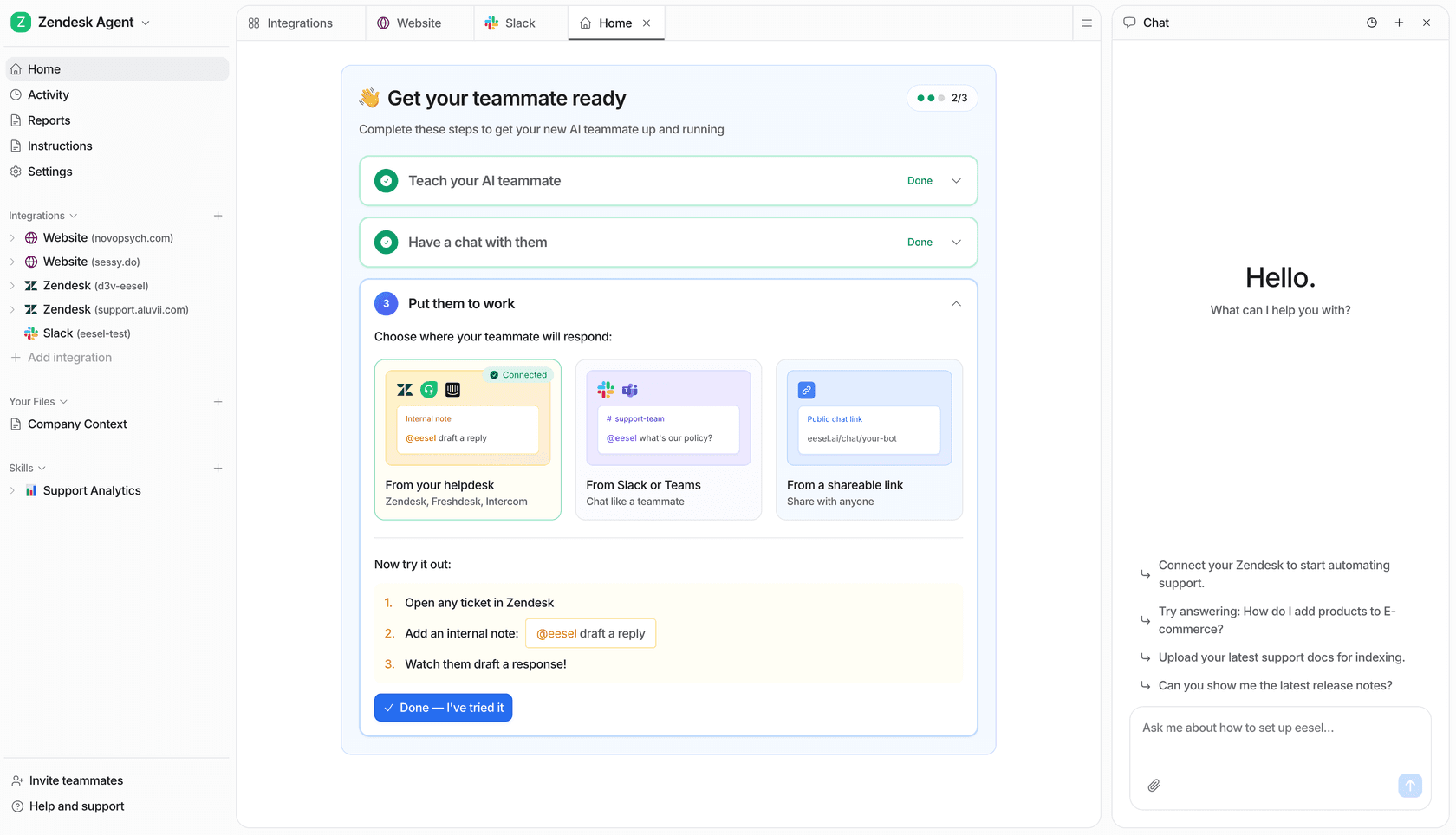
You install eesel from the Zendesk App Marketplace, connect your knowledge sources (help center articles, past tickets, Confluence, Google Drive), and define routing behavior through plain-English instructions. There's no taxonomy to define, no model to train, and no API token setup. An instruction like "For billing tickets, assign to the Finance group and add the billing tag" is all the routing configuration required.
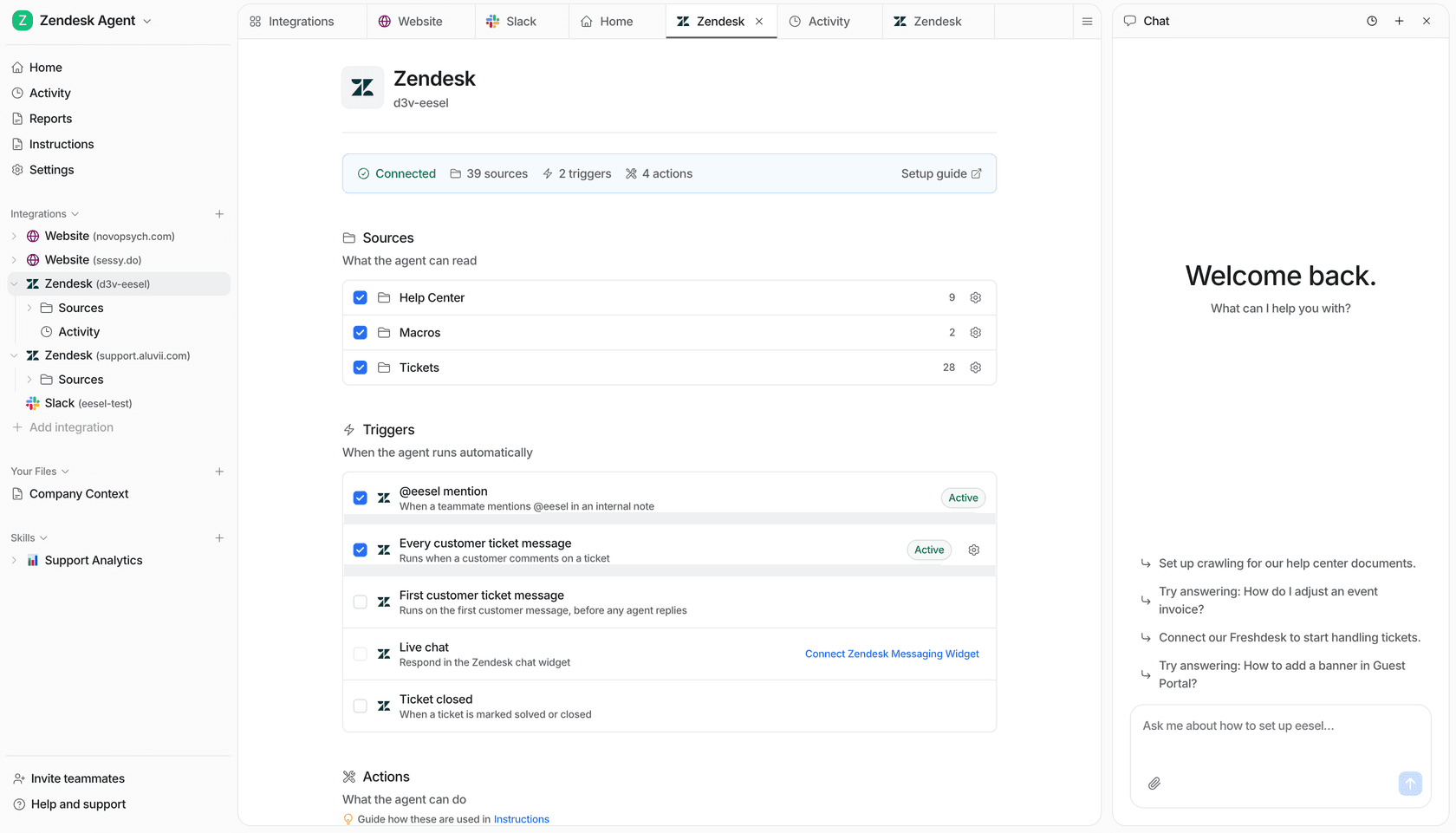
eesel uses a graduated autonomy model: start in draft-review mode where every AI response goes through a human before sending, then promote to autonomous operation as you gain confidence in the output. The simulation mode lets you test eesel against thousands of past tickets before any of it reaches real customers.
Teams running eesel on Zendesk handle up to 100,000 tickets per month in production. Pricing is $0.40 per ticket with no platform fee, no per-seat charges, and a spending limit that pauses the agent automatically if you hit it. The free trial includes $50 in usage with all features enabled and no credit card required.
Try eesel AI
eesel AI is an AI helpdesk agent that connects to Zendesk and handles tickets from triage through resolution. It learns from your existing ticket history, macros, and help center, and you control its behavior through plain-English instructions - no model training or integration setup required. Start with the $50 free trial with all features enabled.