
What Zendesk conversation logs show
Zendesk says conversation logs contain messages exchanged between an AI agent and end users during automated conversations. Only conversations that include end-user messages are listed. Open AI agents, select the agent, and choose Conversation logs. The initial view covers the past seven days; change the time range if the record is older.
For messaging AI agents, the page can switch between Status and Custom resolutions. Use the filters to narrow the list, then open an individual conversation. The conversation appears with messages and applied actions, which is a better starting point than trying to infer the cause from a summary metric.
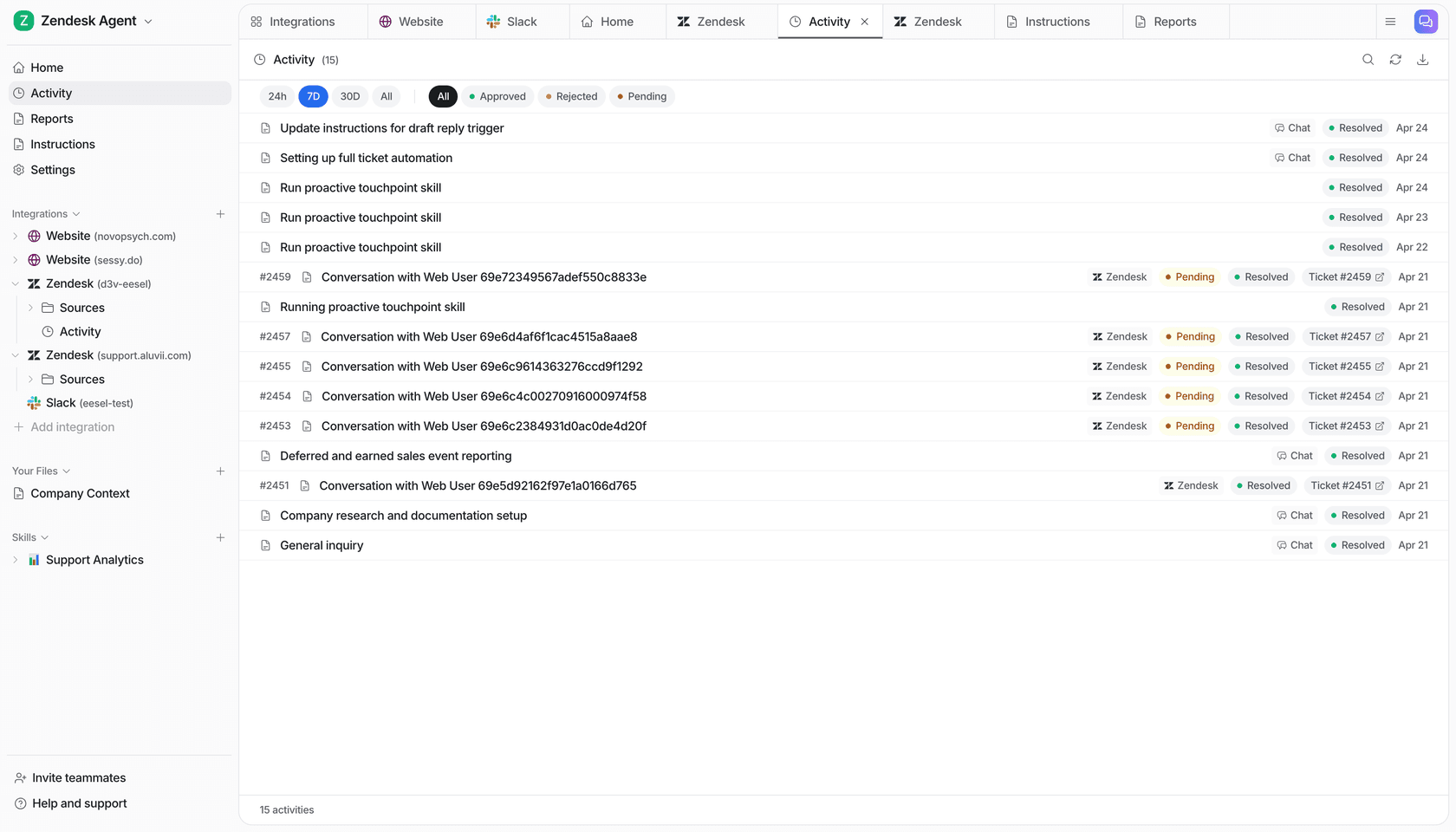
This eesel image is not a Zendesk screen or a substitute for Zendesk logs. It is included because, when you operate eesel alongside Zendesk, eesel has its own activity surface to inspect separately.
Start with the first wrong thing
An investigation is easier when it has a precise question. Instead of “the AI gave a bad answer,” write down the first observable mismatch:
- The user asked for an order status, but the agent picked a returns path.
- The agent picked the right path, but the integration received no order number.
- The API request had an order number, but returned an error or a record for the wrong account.
- The data was correct, but the response presented it in a misleading way.
Open the relevant message and select View details. For a user message, Zendesk's Message overview includes the exact message and the presumed use case, with an AI-generated explanation for zero-training agents. There is an important caveat in Zendesk's documentation: for agentic AI, the displayed use case is a legacy-process prediction and might not be the use case or action the agent ultimately selected. Do not treat that field as conclusive proof of the final decision.
For a dialogue-based AI-agent message, Reply overview includes the used reply, reply type, and the use case associated with the dialogue. That makes it practical to distinguish a selection problem from a response-writing problem.
Trace a wrong tool result without changing five settings
Say a customer asks, “Where is order 8127?” and gets a delivery estimate for a different order. Work through the record in this order:
- Read the user's exact message and determine whether the expected identifier was present.
- Check the message and reply details to see which use case and reply the agent used.
- Select any gray action box to identify the configured action, custom action, or action flow that executed.
- Look for Integration triggered or Integration parameter requested. Open the integration entry, then the API request.
- Compare the request and session parameters, response, and any error with the external system's expected contract.
- Change the smallest responsible setting, test a representative case, and review the next real record.
Zendesk documents that the Integration details panel can show when a call was made, request and session parameters, response data, errors, and more. It also says legacy API integrations do not appear in conversation logs. If there is no integration entry, do not conclude that a call failed; first confirm that the flow was meant to run a supported integration at all.
Treat logs as evidence, not a scorecard
Conversation logs reveal what happened in one interaction. They do not prove that the agent will behave that way for every customer. Use a small group of examples to find repeated causes: a missing parameter, a broad condition, an action that needs narrower permissions, or a handoff path that starts too late.
Zendesk also has a Conversation journey report, which maps paths across use cases to automated resolution, escalation, or an unresolved outcome. Its original announcement, written under the former Advanced AI agents name, describes it as a Sankey diagram. That can tell you where to look. The individual log still tells you why a particular customer took that path.
If you run eesel alongside Zendesk
The eesel CLI lets a support engineer investigate an eesel helpdesk teammate from the terminal, in the same workspace shown in the dashboard. This gives a coding agent a practical way to help diagnose a failed support case. Use Zendesk logs for Zendesk's native AI agent and eesel activity for the eesel teammate; keep the two records distinct.
The CLI has JSON output, so a support engineer, a short script, Claude Code, Codex, or Cursor can follow a controlled diagnosis. With Node.js 18.17+, use npx @eesel/cli; a globally installed eesel command is equivalent. Keep the target explicit with --agent:
npx @eesel/cli --agent "Support" instructions
npx @eesel/cli --agent "Support" activity
npx @eesel/cli --agent "Support" chat "Where is order 8127?"
npx @eesel/cli --agent "Support" approvals
First read the standing instructions and activity. Before testing the de-identified failure question, confirm that the example identifier refers to approved test data and restrict connected actions outside the test's scope. approvals lists held eesel actions; it does not mean every action waits for permission. A coding agent can parse the JSON and prepare a narrow change, but the owner must approve it and check the external order system and eventual Zendesk ticket before saying the failure is fixed. Use --dry-run to preview writes after reviewing that command's help.
Investigate a support case with eesel
The fastest useful log review ends with a small, testable explanation: “the wrong use case was selected,” “the identifier was absent,” or “the external API returned an error.” That is better than a broad rewrite based on one bad answer.
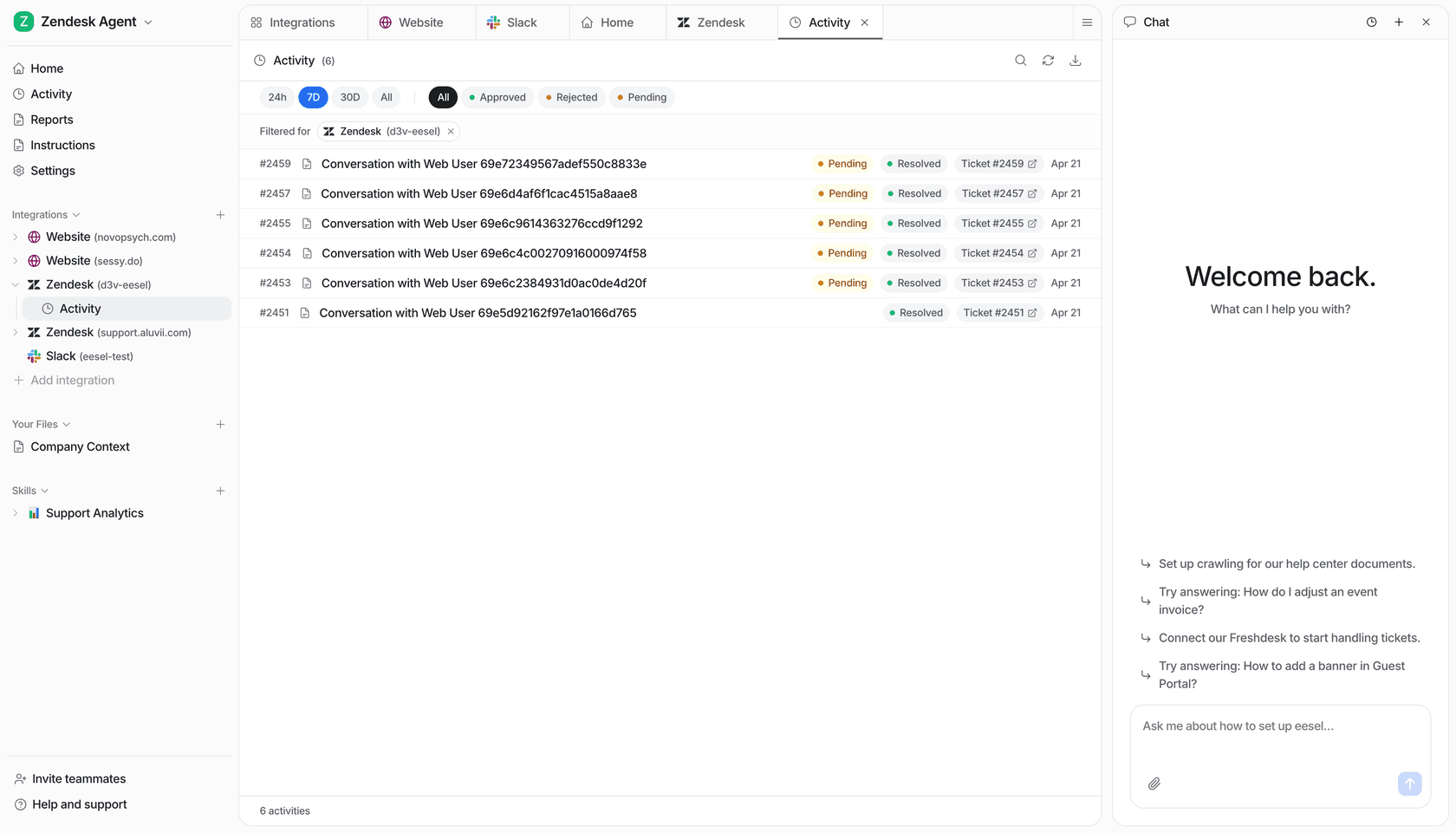
eesel Activity lists Zendesk conversations with status filters and teammate chat.
To investigate an eesel teammate alongside your Zendesk queue, Try eesel. Start with one observed failure, preserve the evidence, and check the result where the support work actually lands.
Frequently asked questions
What appears in Zendesk AI agent conversation logs?
Logs show automated conversations containing end-user messages. You can open a conversation, inspect its messages and actions, and review supported API-integration details.
What is the default time range?
Zendesk documents the default conversation-log time frame as the past seven days. Adjust the time frame if the record is not shown.
What can I inspect for a user message?
Message overview includes the exact user message and a presumed use case. For agentic AI, Zendesk says that use case can be a legacy-process prediction rather than the use case or action ultimately selected.
Can I inspect integration errors?
For supported API integrations, an integration entry opens request and session parameters, the response, errors, and other details. Legacy API integrations do not appear in conversation logs.