


Disclosure: This article is published by eesel AI, a competitor of Microsoft 365 Copilot. We encourage you to read Microsoft's own materials for their perspective.
Spreadsheets hold a lot of useful data, but getting answers out of them has always meant knowing the right formulas or navigating PivotTable menus. Microsoft's Copilot for Excel changes the dynamic: you describe what you want in plain English, and it writes the formula, generates the chart, or surfaces the insight for you.
This guide covers what Copilot in Excel actually does, the setup you'll need, where its limits are, and whether it's the right fit for your team.
What is Copilot Excel?
Copilot in Excel is an AI assistant built directly into the spreadsheet surface. Rather than memorizing VLOOKUP syntax or clicking through chart-wizard menus, you type a plain-English prompt ("show me which marketing campaign performed best"), and it does the work.
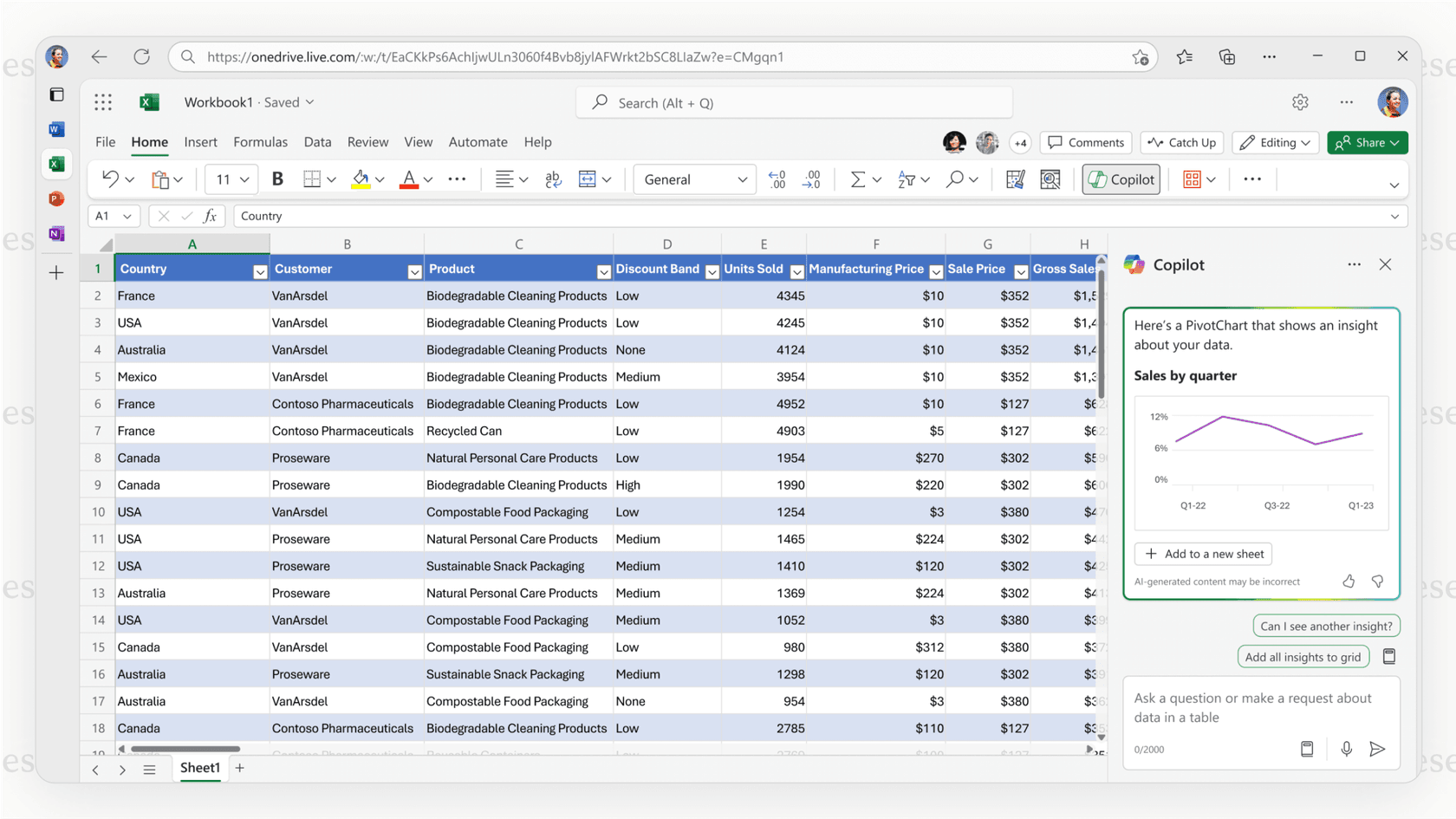
It's part of the Microsoft 365 Copilot family, which also runs in Word, PowerPoint, Outlook, and Teams. Its job is to make the powerful capabilities already inside Excel (formulas, PivotTables, conditional formatting) more accessible, without adding a steep learning curve. It doesn't add brand-new features to Excel, but it substantially lowers the bar for using the ones already there.
Key features and capabilities of Copilot Excel
Here's what the assistant can actually do.
Formula generation and explanation
Copilot can build formulas from natural-language descriptions: "add a column that calculates the percentage change between Q1 and Q2 sales" turns into a ready-to-insert formula. It can also explain existing formulas in plain English, which is useful when you've inherited a deeply nested IF statement and need to understand what it does before touching it.
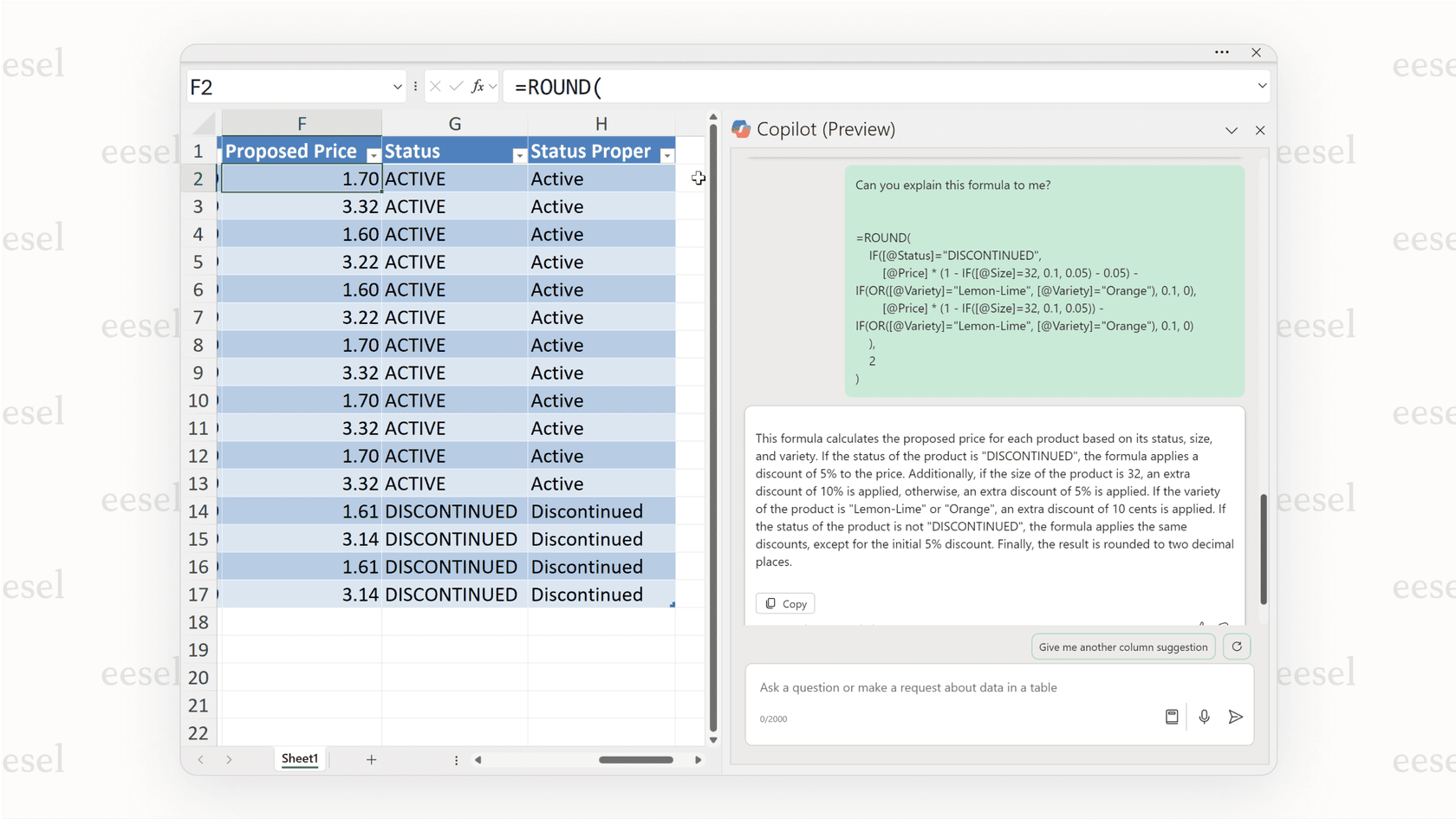
Data analysis and insights
Copilot in Excel identifies trends, outliers, and relationships in your data and surfaces them as charts, PivotTables, summaries, or plain-language observations. You can ask for a specific visual ("make a bar chart showing sales by project type") or ask it to look for patterns you haven't defined.
For deeper statistical work, Copilot in Excel supports Python-powered analysis: regression, statistical modeling, and more, without requiring you to write Python yourself.
Formatting and data cleaning
Copilot handles common formatting and cleanup tasks through plain prompts: "highlight all sales figures over $50,000," "remove duplicate rows," "split the full-name column into first and last." It applies conditional formatting rules, sorts and filters data, and handles data prep that would otherwise mean clicking through menus one step at a time.
Getting started: Requirements and cost
Copilot in Excel isn't included with a standard Microsoft 365 subscription. It requires two separate subscriptions before it will appear in your toolbar.
What you need:
- A qualifying Microsoft 365 base plan (Business Basic, Business Standard, Business Premium, or an enterprise E-series plan)
- A Microsoft 365 Copilot add-on license on top of that
What the add-on costs:
- Microsoft 365 Copilot Business (up to 300 users): $18/user/month, paid annually
- Microsoft 365 Copilot (enterprise): $30/user/month, paid annually
- Copilot Pro (personal use): $20/user/month
Once licensed, two technical requirements must be met before Copilot activates in Excel:
- The file must be saved in OneDrive or SharePoint with AutoSave turned on. A file on your local hard drive won't work.
- Your data must be formatted as an Excel Table (Ctrl+T to convert a plain cell range).
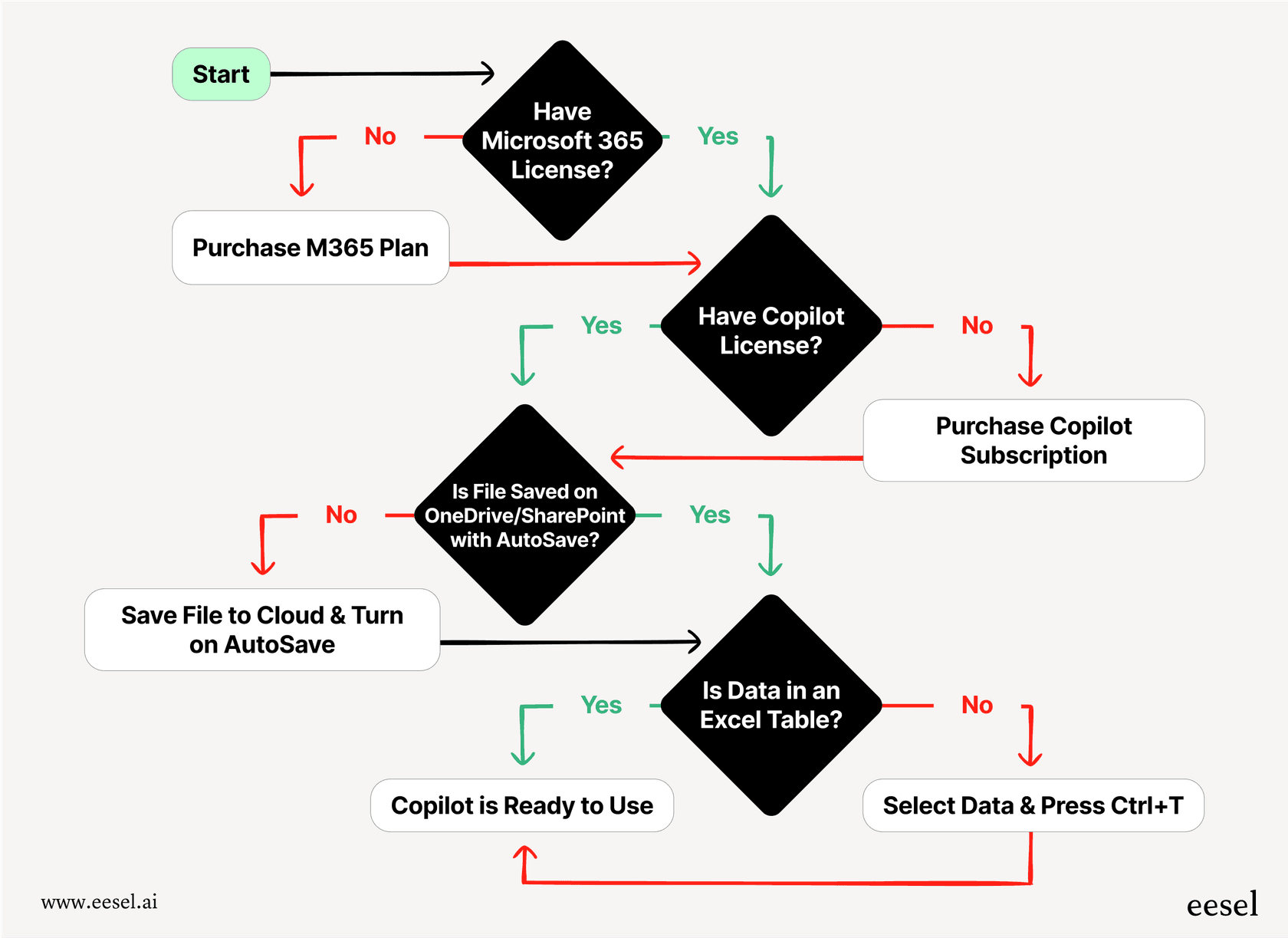
Note: If you've paid for the license but the Copilot button is still grayed out, the most common cause is the file sitting on your local machine rather than in OneDrive or SharePoint.
The real-world limitations
Copilot in Excel is genuinely useful for spreadsheet work, but it comes with constraints worth knowing before committing to the setup cost.
Data scope goes beyond the open file, but stays inside a spreadsheet workflow. Microsoft's official getting-started page describes three external sources Copilot in Excel can reach: web data (via Bing), files saved in OneDrive or SharePoint (including other Excel workbooks you own), and organizational communications surfaced through Microsoft Graph. What it doesn't support is direct querying of third-party platforms through the Excel surface itself. Those integrations exist in Microsoft 365 Copilot's broader connector ecosystem but operate outside the in-Excel experience.
It makes mistakes. Microsoft's own FAQ explicitly warns that "AI-generated content may be incorrect." Users have reported cases like asking it to extract US states from a list of addresses and getting "New" pulled from "New York" and "New Jersey" as a separate entry. Always review its outputs before acting on them.
Is Excel Copilot useful?
byu/strawwkk inmicrosoft_365_copilot
It slows on large datasets. The technical ceiling is around two million cells, but users find it can get slow or unresponsive on complex tables well before that limit.
Automation stops at the spreadsheet edge. Copilot can generate a VBA macro or run a Python script inside Excel. What it can't do is automate real business workflows outside the spreadsheet. It won't escalate a support ticket, update a CRM record, or create a task in Jira. Its reach ends where the spreadsheet does.
The licensing path adds up. You need both a qualifying Microsoft 365 base subscription and a Copilot add-on license: $18/user/month for SMB teams or $30/user/month for enterprise, on top of whatever you're already paying for Microsoft 365 itself.
When you need more than Copilot Excel
Copilot in Excel is purpose-built for spreadsheet analysis. For teams whose work lives in helpdesks, wikis, and support queues, that focus becomes a constraint.
That's where a platform like eesel AI is designed differently. While Copilot's Excel surface centers on data that lives in spreadsheets, eesel AI is built to connect your entire support stack. It plugs into helpdesks like Zendesk and Freshdesk, company wikis like Confluence and Notion, and communication tools like Slack and Microsoft Teams, letting it draw answers from your whole knowledge base rather than a single file format.
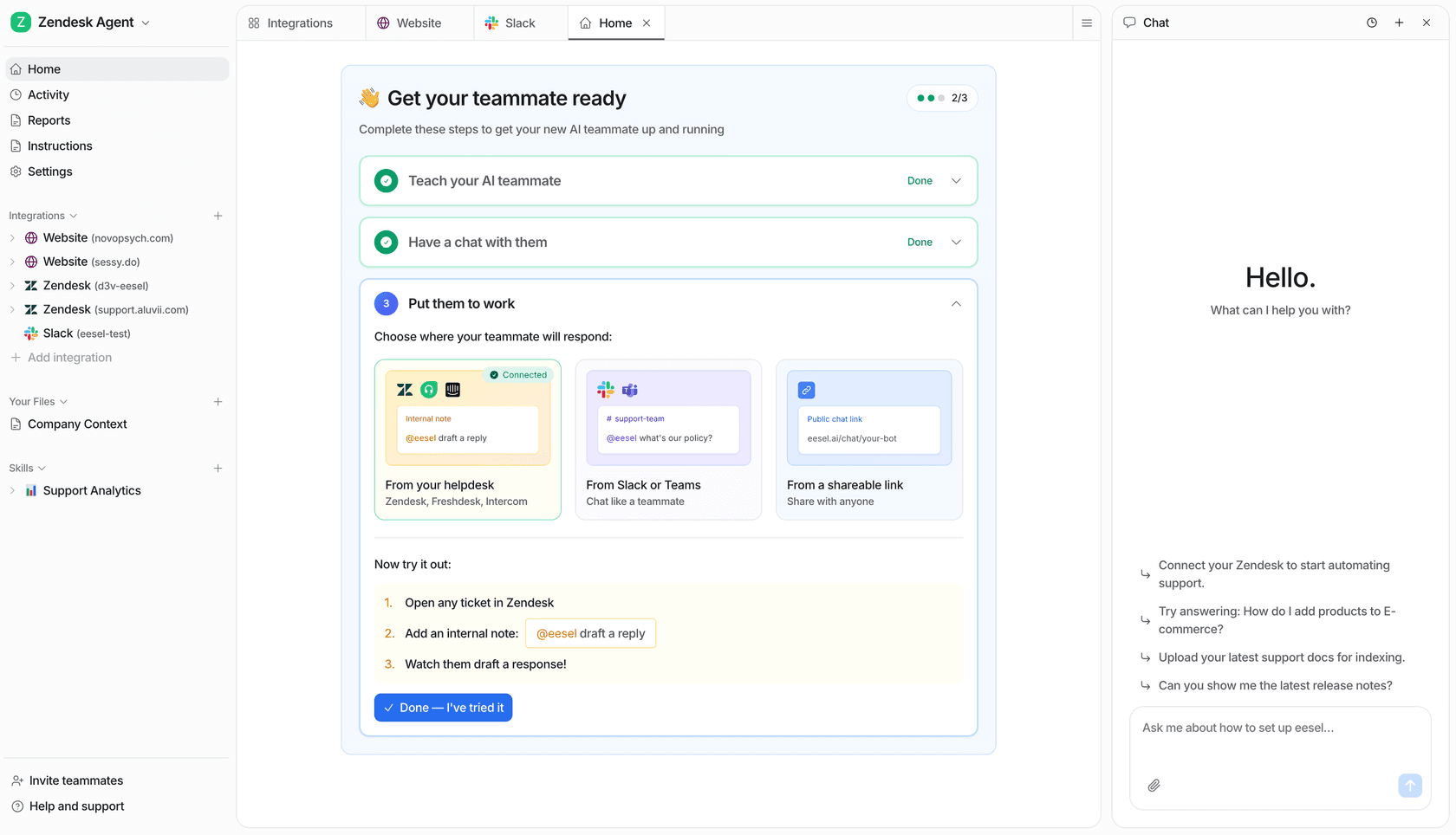
Setup is self-serve: one-click integrations, no developer required, up and running in minutes.
Beyond answering questions, eesel AI can automate real support work: triaging tickets, adding tags, escalating issues, and making custom API calls to connected systems. It has a simulation mode for testing how the AI would handle your historical tickets before going live, something no spreadsheet assistant was designed to provide.
| Feature | Copilot in Excel | eesel AI |
|---|---|---|
| Data access | Open file, web, OneDrive/SharePoint files, org communications | 100+ integrations (Zendesk, Confluence, Slack, etc.) |
| Primary use case | Spreadsheet analysis and formula help | End-to-end customer service and internal support automation |
| Setup time | Days to weeks (needs M365 + Copilot add-on) | Go live in minutes (fully self-serve) |
| Workflow actions | No (limited to in-sheet scripts) | Yes (ticket triage, API calls, custom actions) |
| Simulation mode | No | Yes (test on historical data before going live) |
Copilot Excel and choosing the right AI for the job
Copilot in Excel is a real upgrade for anyone who spends significant time in spreadsheets. It makes formula creation, data analysis, and visualization much more accessible. For that specific job, it does it well.
Its focus is narrow by design. It's a specialist for spreadsheet work, optimized for data formatted as Excel tables in your cloud storage. For teams that need to draw on knowledge across multiple business tools, automate real support workflows, and build AI that connects the dots between systems, a platform like eesel AI makes more sense. The right choice comes down to what problem you're actually trying to solve.
See how eesel AI can help your team do their work. Start a free trial or book a demo.
Frequently asked questions
My boss asked me to look into it, but what do we actually need to buy to start using Copilot Excel?
You need two separate subscriptions per person: a qualifying Microsoft 365 base plan (Business Basic, Business Standard, Business Premium, or an enterprise E-series plan), plus a Microsoft 365 Copilot add-on. That add-on runs $18/user/month for teams under 300 people, or $30/user/month for enterprise.
Can Copilot Excel pull data from outside the spreadsheet I have open?
Yes, within limits. Microsoft's getting-started page describes three external sources it can reach: the web (via Bing), files saved in OneDrive or SharePoint (including other Excel workbooks), and communications from within your organization. Direct querying of third-party tools like Zendesk or Confluence through the Excel surface isn't supported. Those connections exist at the broader Microsoft 365 Copilot level via connectors, not within the Excel interface itself.
Is there a limit to how much data Copilot Excel can handle?
The technical ceiling is around two million cells, though Microsoft's FAQ notes that performance can degrade on large or complex datasets well before that limit. For heavy reporting workloads, breaking data into smaller, focused tables generally helps.
How much should I trust the answers I get from Copilot Excel? Is it always accurate?
Always double-check its work. Microsoft's own FAQ states that AI-generated content may be incorrect. It can misinterpret prompts or make logical errors, so treat its outputs as a starting point to review rather than a final answer.