


If you’re a developer, you’ve probably been hearing the constant buzz about AI coding assistants. The big debate right now seems to be Microsoft Copilot vs Cursor. Both are impressive tools that can help you write code faster, but they come at the problem from completely different angles. Copilot works inside your current editor, while Cursor is a whole new, AI-first environment.
Picking the right one isn't just about a feature list; it's about what gels with your personal workflow. This guide will break down the key differences between Microsoft Copilot and Cursor, from their features and pricing to their core philosophies. More importantly, we'll look at how this whole debate points to a bigger trend: the need for specialized AI assistants in every field, not just coding.
Microsoft Copilot vs Cursor: What are these AI assistants?
Alright, before we get into the nitty-gritty, let's quickly cover what these two tools actually are. Both are essentially AI pair programmers. You give them instructions in plain English, and they help you write, debug, and refactor code much more efficiently.
Microsoft Copilot means GitHub Copilot in this comparison: the AI coding assistant from GitHub, which offers models from OpenAI, Anthropic, Google and xAI. It plugs directly into popular editors (IDEs) like VS Code, Visual Studio, and JetBrains as an extension. It gives you code suggestions as you type, has a chat window for asking questions, and even an "agent mode" that can try to tackle entire tasks based on your GitHub issues. The big plus here is that it beefs up the tools you already know and love.
Cursor is a different beast. It's a standalone code editor built from the ground up with AI at its core (it's actually a fork of VS Code). Because AI isn't just an add-on, it has a deep understanding of your entire codebase. This lets it pull off powerful refactoring across multiple files and follow multi-step plans with less hand-holding. Cursor is trying to be the go-to editor for developers who want to build software side-by-side with an AI. Its maker was officially acquired by SpaceX on August 14, 2026.
A detailed feature comparison: Microsoft Copilot vs Cursor
Okay, so both tools want to make you a faster coder. But how they get you there is pretty different. The day-to-day experience, how much they understand your project, and how much they can do on their own varies quite a bit.
IDE integration and user experience
Microsoft Copilot is a plugin, which means you can add its AI power to the editor you've already customized. That's a massive win if you've spent years perfecting your setup and don't want to start over. The whole experience feels pretty natural, with suggestions just popping up as you type.
Cursor, on the other hand, is the editor. If you've used VS Code, it will feel very familiar, but it's a separate app you have to install. This tight integration lets it do some unique, AI-native things that would be tough for a simple extension. But it's not all smooth sailing; some developers on Reddit have pointed out that Cursor messes with familiar VS Code shortcuts, which can be a real pain to get used to.
Context awareness and codebase understanding
This is really where the two start to show their differences. When Cursor first came out, it had a clear lead here. It could index your entire codebase right away, letting you reference specific files or folders with an @ symbol to give the AI pinpoint context.
Copilot has been working hard to catch up. It now looks at all your open files and has features for adding more context. Still, for really large or tangled projects, some users feel like Copilot's grasp of the big picture isn't as solid as Cursor's. According to a comparison by builder.io, Cursor's project-wide smarts are still "unmatched," while Copilot can get a bit "sluggish" when you throw too much at it.
Agent capabilities and autonomous tasks
Both tools have moved beyond just finishing your lines of code. They now have "agent" modes that can take on bigger, more complex jobs.
-
Copilot's Agent Mode: You can point it to a GitHub issue, and it'll map out a plan, write the code, run tests, and even open a pull request for you. It's built right into the GitHub ecosystem, which makes it a great fit if your team already lives there.
-
Cursor's Agent Mode: Cursor’s agent feels more like a core part of the editor. It can read through your codebase, run commands in the terminal, and make changes across a bunch of files from a single prompt. In a head-to-head test by NearForm, Cursor actually managed to build a working feature and pass all the tests. Copilot, on the other hand, kind of stumbled and didn't finish the job.
Pricing breakdown: Microsoft Copilot vs Cursor
Let's talk money, because that's a huge piece of the Microsoft Copilot vs Cursor puzzle. It's something developers on Reddit bring up a lot, noting that Copilot often delivers similar features for about half the cost.
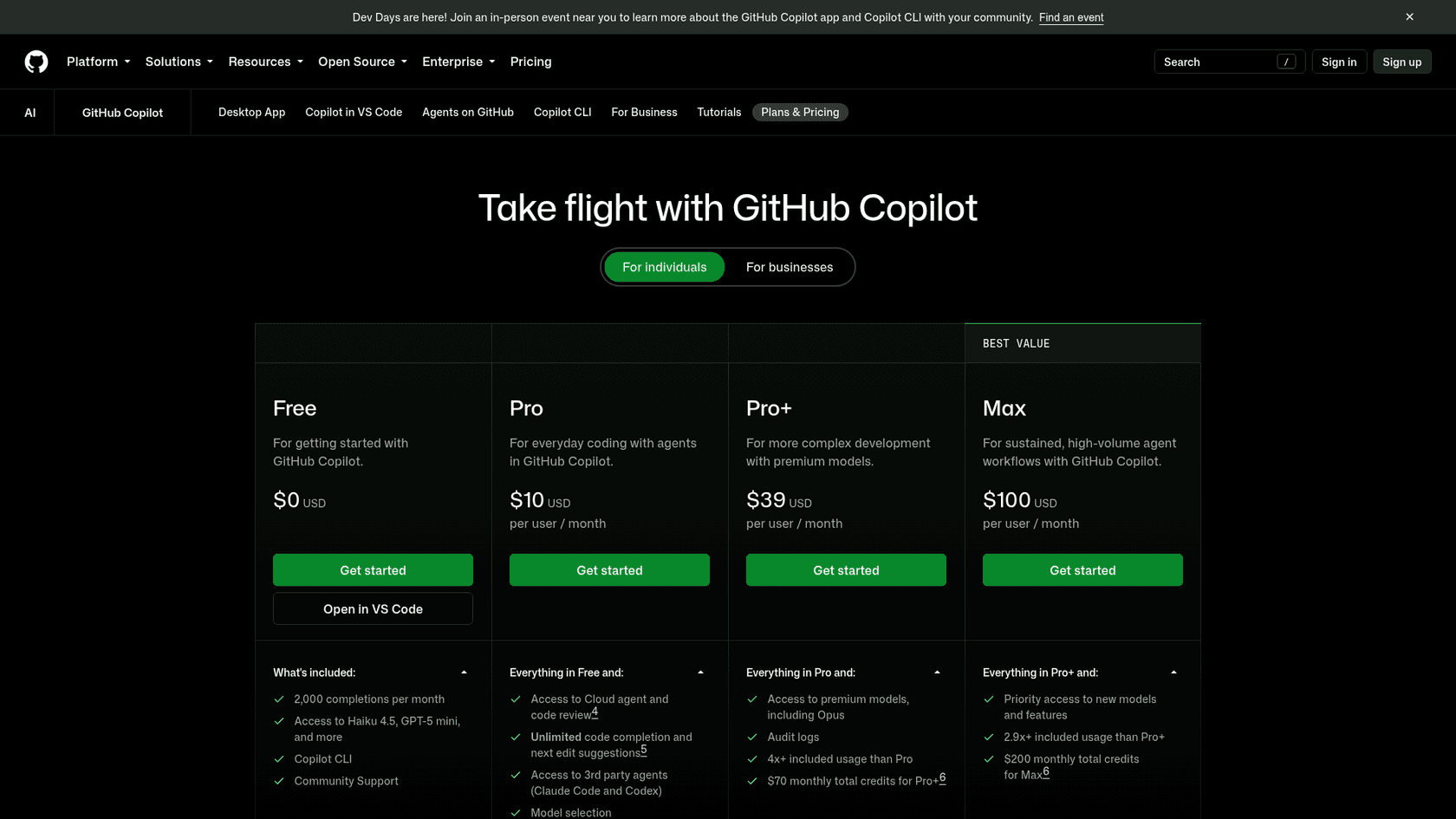
Microsoft Copilot has a free plan with 2,000 completions a month, and verified students, teachers and maintainers of popular open-source projects can get free access to more. For everyone else, the pricing is pretty simple:
-
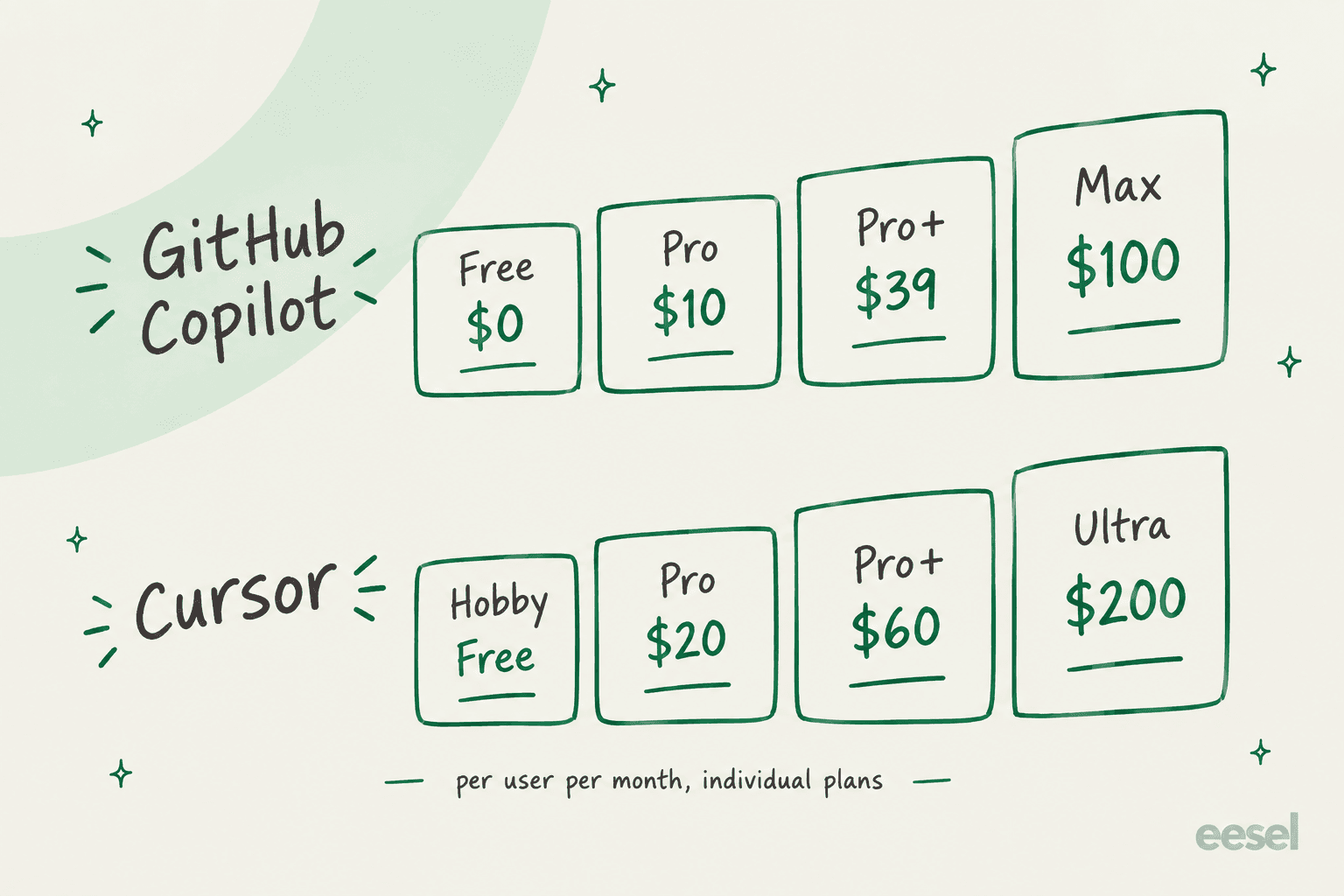
Copilot Pro: $10 a month with unlimited code completion and $15 in monthly GitHub AI Credits for chat, agent mode, and code review. Pro+ is $39 ($70 in credits) and Max is $100 ($200 in credits).
-
Copilot Business: $19 per user per month, which adds things like organization-wide policy controls.
-
Copilot Enterprise: $39 per user per month for more advanced customization and security features.
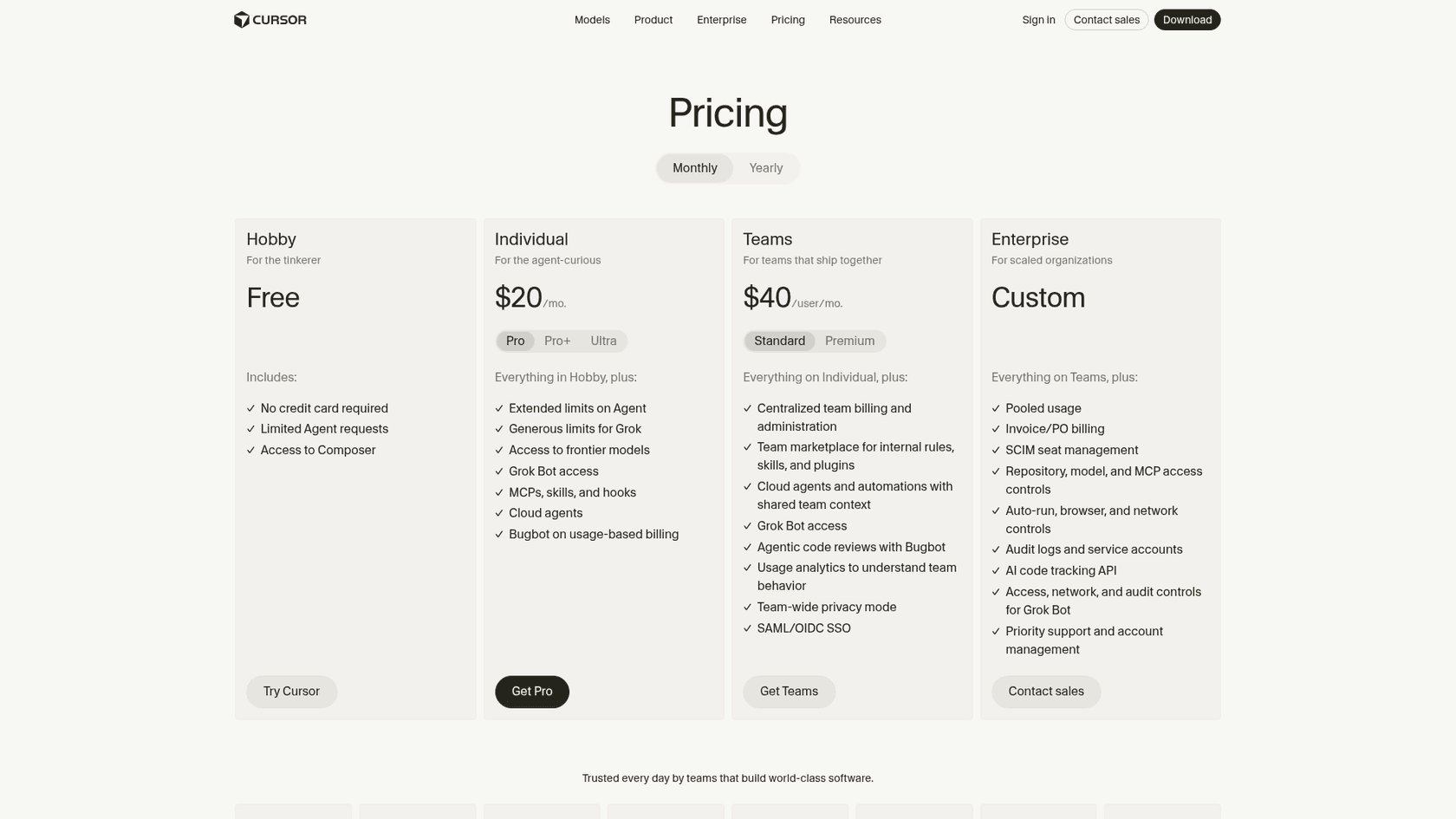
Cursor also has a free tier with some limitations so you can give it a spin. The paid plans come with included usage pools for Cursor's own models and for third-party models, charged at API prices:
-
Pro: $20 a month comes with $20 of included third-party model usage.
-
Pro+: $60 a month comes with $70 of included third-party usage and 3x Pro's Agent limits. Ultra is $200 a month with $400 of included usage and 20x Pro's Agent limits.
-
Teams: $40 per user per month for shared billing and admin features (Premium seats are $120 with 5x the usage).
Here's a quick table to break it down:
| Plan Tier | Microsoft Copilot (Pro) | Cursor (Pro) |
|---|---|---|
| Monthly Price | $10 | $20 |
| Core Offering | Unlimited completions, $15 credits | $20 of included usage |
| Key Advantage | Lower cost, deep GitHub integration | AI-native editor, superior context |
Beyond Microsoft Copilot vs Cursor: Why specialized AI agents matter for every team
All this back-and-forth between Copilot and Cursor actually highlights something bigger: for complex, professional work, a generic AI just doesn't cut it. Developers need tools that are wired directly into their workflows, understand their specific context (the codebase), and can perform specialized tasks (like running tests or creating pull requests).
This same idea applies to every other team in a company, especially customer support. Think about it: you wouldn't use GitHub Copilot to resolve a customer ticket, right? It lacks the context and capabilities for that job. Support teams need their own specialized AI assistant that's built for their world.
That's exactly why tools like eesel AI exist. It acts as a specialized AI agent for customer service, giving them the same kind of tailored assistance that developers get from Copilot and Cursor.
While developers need an AI that gets code, support teams need one that gets customer problems. eesel AI does this by:
-
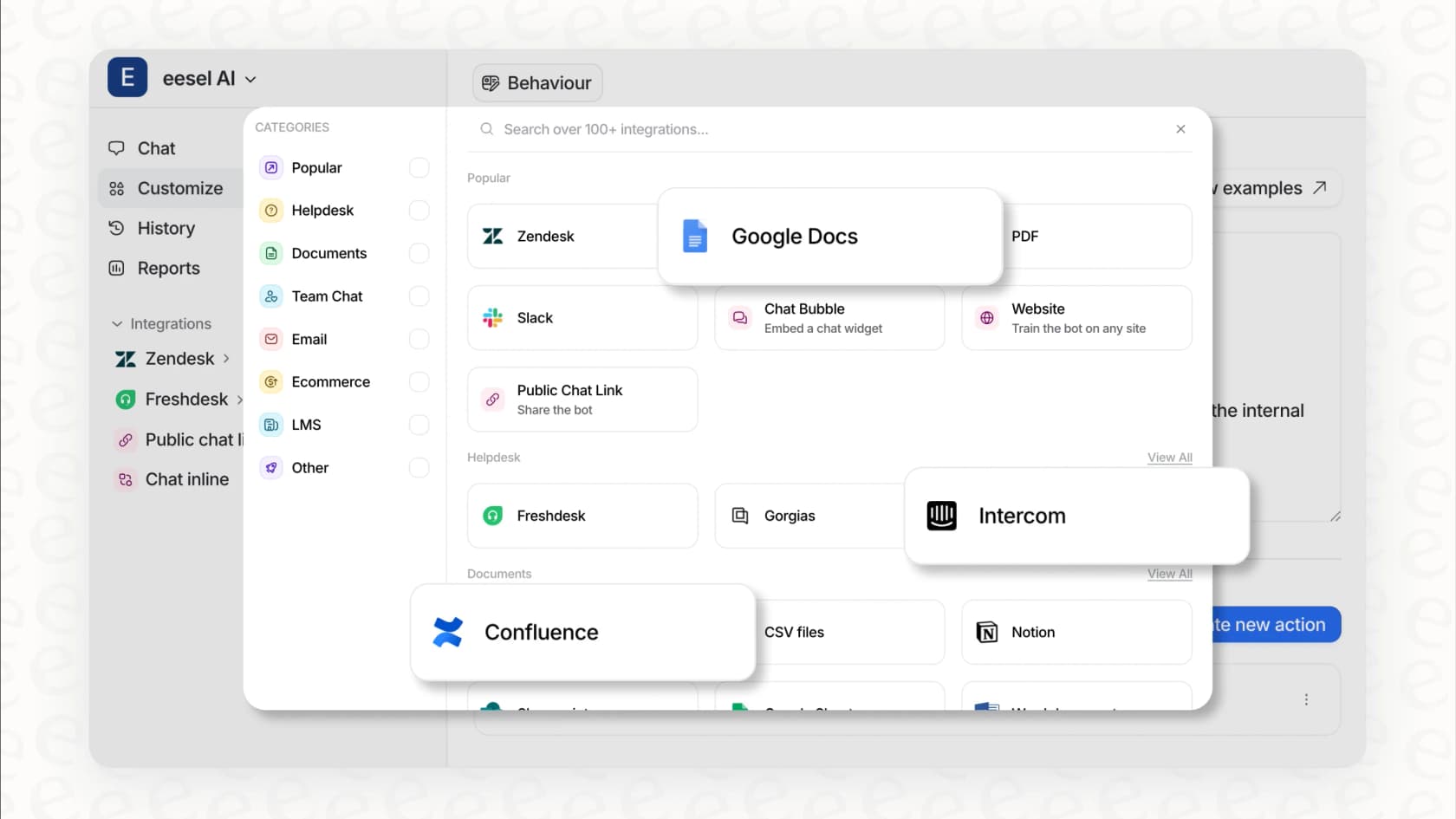
Unifying knowledge instantly: Instead of a codebase, eesel AI learns from all your support documentation, past tickets, help articles, Confluence pages, Google Docs, you name it. This gives it the full picture it needs to answer customer questions correctly.
-
Integrating with your existing tools: Just like Copilot plugs into your editor, eesel AI offers one-click helpdesk integration with platforms your team already uses, like Zendesk, Freshdesk, and Intercom. You don't have to change your existing setup.
-
Offering total control and custom actions: You get to decide exactly which tickets the AI should handle and what actions it's allowed to take, whether that's triaging a new ticket or looking up order details in real-time. This ensures the AI fits right into your team's workflow.
The final verdict: Choosing the right tool for the job
So, who wins in the Microsoft Copilot vs Cursor showdown? Honestly, it depends on what you're looking for.
-
Choose Microsoft Copilot if you love your current editor and want a powerful, budget-friendly AI assistant that works perfectly with the GitHub ecosystem. It’s the practical pick for most developers who just want to add some AI muscle to their current process.
-
Choose Cursor if you want to be on the bleeding edge of AI-driven development and don't mind adopting a new, AI-first editor. Its top-notch context awareness and impressive agent features make it a beast for complex projects, even if it costs a bit more.
The real takeaway here is that the best AI tool is one that's built for the job at hand. Just as developers are choosing between specialized coding assistants, support teams need a specialized platform to automate their work well.
Final thoughts on Microsoft Copilot vs Cursor
The rise of powerful AI assistants like Copilot and Cursor is changing how software gets built. But the real shift is seeing this specialized AI approach spread to all parts of a business. If you want to bring that same level of smart automation to your customer support team, it's time to move past generic chatbots and find a tool designed for their needs.
Ready to see what a specialized AI agent can do for your support team? Get started with eesel AI in minutes.
Frequently asked questions
What's the fundamental difference between Microsoft Copilot vs Cursor, and how does that impact workflow?
The core difference is that Copilot is an extension for your existing IDE, enhancing your current setup, while Cursor is a new, AI-first code editor. This means Copilot integrates into your familiar environment, whereas Cursor requires adopting a new development environment built around AI.
If I'm happy with my current IDE, which option between Microsoft Copilot vs Cursor makes more sense for me?
If you're content with your current editor, Microsoft Copilot is likely the better choice. It integrates seamlessly as a plugin into popular IDEs like VS Code and JetBrains, allowing you to leverage AI assistance without changing your established workflow.
How do the context-understanding capabilities of Microsoft Copilot vs Cursor compare, especially for larger projects?
Cursor generally has a lead in project-wide context awareness, indexing your entire codebase for deep understanding. While Copilot has improved its context capabilities, some users still find Cursor's grasp of large or complex projects to be superior.
For automating larger tasks or complex code changes, which tool, Microsoft Copilot vs Cursor, offers stronger agent capabilities?
Both have agent modes, but Cursor's agent, being core to its editor, demonstrated stronger performance in tests, capable of running commands and making multi-file changes from a single prompt. Copilot's agent is great for GitHub-integrated tasks like creating pull requests, but Cursor showed more autonomy for complex feature building.
When considering the pricing, what's the value proposition for Microsoft Copilot vs Cursor?
Microsoft Copilot offers a lower monthly cost for individual users ($10 for Pro) with unlimited code completions and $15 in monthly AI credits, making it a budget-friendly option. Cursor's paid plans start at $20/month with included usage pools, emphasizing its AI-native features and superior context as its value differentiator for a higher price point.
Is there a significant learning curve when deciding between Microsoft Copilot vs Cursor, especially if I'm already familiar with VS Code?
While Cursor is a fork of VS Code and will feel familiar, some developers note that it can mess with familiar VS Code shortcuts, which might require a period of adjustment. Copilot, being a plugin, integrates more naturally into your existing editor setup with less disruption.
What are the key considerations for team or enterprise use when comparing Microsoft Copilot vs Cursor?
For team and enterprise use, Copilot offers specific business and enterprise tiers with features like organization-wide policy controls and advanced security. Cursor also has a "Teams" plan for shared billing, but Copilot's deep integration with GitHub's ecosystem often makes it a strong contender for organizations already heavily invested in GitHub.